Your phone getting warm while charging is completely normal — but if it gets hot enough that you feel the need to pull your hand away, that’s a sign something might be wrong.
This kind of heat isn’t something to ignore — over time, it can wear down your battery and affect how your phone performs.
I’ve seen this happen across all kinds of devices, and in most cases, the real cause isn’t what people expect.
In this guide, you’ll learn why your phone overheats while charging and the simple steps you can take to prevent long-term damage.
Key Takeaways
- A little warmth while charging is normal — especially with fast charging
- Heat becomes a problem when your phone feels too hot to hold, slows down, or shows a warning
- Using your phone while charging is one of the biggest causes of extra heat
- Thick cases can trap heat and make things worse
- Dust or damage in the charging port can create heat at the connection point
- Older batteries naturally run hotter than newer ones
- Charging habits (like always going 0%–100%) can increase long-term heat stress
Bottom line: heat mostly depends on how you charge, your environment, and your battery condition.
Table of Contents
- What Does “Phone Overheating When Charging” Actually Mean?
- Why Does My Phone Get Hot When Charging?
- Temperature Danger Zones — Know Your Numbers
- 7 Safety Fixes for Phone Overheating When Charging
- The 20–80% Charging Rule: Best Habit for 2026
- Android vs iPhone: Where the Settings Differ
- Critical Warning Signs — Stop Charging Now
- Is Malware Making Your Phone Overheat?
- How to Prevent Phone Overheating When Charging Long-Term
- Frequently Asked Questions
- Conclusion
What Does Phone Overheating When Charging Actually Mean?
Phone overheating means the device has become warm enough for the system to intervene — either by slowing down charging speed, limiting performance, or displaying a temperature warning.
The exact limit varies by device, but if your phone feels uncomfortably hot or starts warning you, it’s no longer normal charging heat.
Every phone gets a bit warm while charging — that’s completely normal.
The lithium-ion battery inside your phone generates heat as a natural byproduct of converting electrical energy into stored chemical energy.
The concern starts when that warmth turns into real heat — the kind that makes you instinctively pull your hand away.
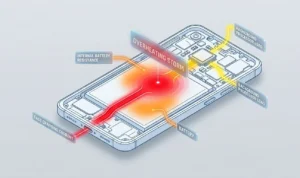
The Science Behind Charging Heat
So where is all that heat actually coming from?
It’s not just one thing — it’s a mix of factors happening at the same time.
Some heat comes from internal resistance as power flows into the battery.
Some is lost when your charger converts electricity into a form your phone can use.
And if you’re using your phone while it charges, the processor adds even more heat on top.
Put all of that together, and the temperature can rise faster than most people expect.
Higher-wattage charging tends to create more heat than lower-wattage charging.
How much heat builds up depends on the battery design, charging system, cooling, and whether you’re using the phone while it charges.
According to Battery University, every 10°C increase in sustained operating temperature can cut a lithium-ion battery’s usable lifespan in half.
The 2026 “Perfect Storm” for Overheating
Many modern smartphones handle multiple background tasks while charging.
Depending on your settings and signal strength, the phone may be syncing photos, refreshing apps, searching for a stronger mobile signal, or processing post-update tasks in the background.
When all of this happens during fast charging, your phone can feel much hotter than usual.
That is one reason charging heat can feel more noticeable on newer devices, especially during heavy or poorly timed background activity.
Why Does My Phone Get Hot When Charging? (The Real Causes)
These are some of the most common reasons a phone heats up during charging, including a few causes that are often overlooked.
1. Your Phone Case Is Acting as an Insulator
Certain phone cases, especially thick silicone, rubber, or leather ones, can trap heat during charging, making your phone feel warmer than it would without the case.
Removing the case gives the phone more room to release heat, which may help it cool down faster.
Wallet-style cases that wrap both sides of the phone create a fully sealed thermal environment — the worst possible scenario during a fast charge.
2. A Dirty or Corroded Charging Port
This is one cause that is often overlooked in many guides.
Lint and debris inside your charging port increase electrical resistance at the connection point.
That resistance converts directly to localized heat — not in the battery itself, but right at the plug.
In some cases, heat around the connector area can be detected by the phone’s temperature monitoring system and lead to a charging slowdown or warning.
If you notice heat concentrated around the charging port area rather than spread evenly across the phone’s back, clean the port before doing anything else.
3. Cheap or Uncertified Chargers
Poor-quality or damaged chargers and cables can create unstable charging conditions.
That can make the phone, cable, or charging brick run hotter than they should
A good-quality GaN charger can be a better option because many are designed to be more efficient and compact than older charger designs.
To see how charging speed and heat differ across flagship devices and chargers in real conditions, our Galaxy S25 Ultra vs iPhone 16 Pro Max Charging Speed Test breaks it down with actual numbers.
4. Using the Phone While It Charges
Running GPS, recording video, gaming, or streaming while charging creates a double thermal load.
The processor generates heat that stacks directly on top of charging heat, overwhelming the phone’s passive cooling.
Using your phone while charging can trigger thermal throttling, where the device slows down to control heat.
If your phone starts lagging, slowing down, or apps crashing while charging, it’s usually because of heat.
5. A Degraded Battery Below 80% Health
As lithium-ion batteries age, their internal resistance increases.
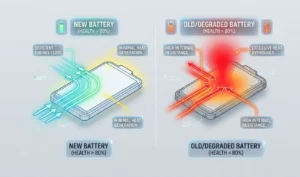
Think of it like an old sponge — it doesn’t absorb energy as efficiently anymore.
As the battery ages, more energy is lost as heat instead of being stored.
If your battery is more than two years old, it’s naturally going to run warmer than a new one, especially during a fast charge.
It’s a self-reinforcing problem: heat degrades the battery faster, which raises resistance, which then generates even more heat.
How to check your battery health:
-
On iPhone: Settings → Battery → Battery Health & Charging.
-
On Samsung: Settings → Battery → Battery Information.
6. 5G Signal Search While Charging
If you are in a weak 5G coverage area, your phone’s radio constantly switches between 5G and LTE trying to lock onto a tower.
Constantly searching for a stronger signal can add extra power drain and heat in the background, especially in areas with weak or unstable coverage.
Enabling Airplane Mode during the first 15 minutes of charging removes this heat source entirely.
7. Post-Update Background Indexing
Right after a major software update, your phone spends hours re-indexing photos, rebuilding app caches, and syncing data — almost always while you plug in to charge after the install.
If overheating started soon after a software update, background indexing or syncing may be part of the reason.
In many cases, this settles down after the phone finishes its post-update background tasks.
Our guide on why phones run slow and hot after software updates explains the full indexing process and how long it normally lasts.
8. Wireless Charging Inefficiency
Wireless charging is generally less efficient than wired charging, so it often produces more heat.
If your phone regularly gets too warm on a wireless charger, switching to a good wired charger may help.
If your phone gets hot while charging wirelessly and you are in a hurry, switching to a certified wired GaN charger is always the cooler option.
Temperature Danger Zones — Know Your Numbers
Here’s a simple way to understand temperature ranges during charging.
Apple recommends keeping iPhones below 35°C ambient during charging.
Most phones start limiting charging speed or performance when temperatures rise beyond their recommended operating range.
| Temperature Range | Status | What It Means | Action |
|---|---|---|---|
| 30°C – 40°C (86°F – 104°F) |
Normal | Expected warmth from fast charging. Battery chemistry is stable. | No action needed |
| 40°C – 45°C (104°F – 113°F) |
Warm — Monitor | Above-average heat. Battery degradation begins accelerating. | Remove case, stop using phone, check background apps |
| 45°C – 50°C (113°F – 122°F) |
Hot — Act Now | Thermal throttling active. Charging slows. Performance drops. Battery degrades fast. | Unplug, cool surface, enable Airplane Mode |
| 50°C+ (122°F+) |
Dangerous | Charging pauses automatically. Risk of permanent battery damage. | Stop charging immediately. Cool in open air. Do not refrigerate. |
7 Safety Fixes for Phone Overheating When Charging
Try these steps one by one, starting with the easiest.
In many cases, the issue improves after the first few changes.
If the heat keeps coming back, keep going.
Fix 1 — Remove the Case Immediately
What’s happening here is simple — your case traps heat.
The back of your phone is where most of the heat escapes.
When it’s covered, that heat gets stuck instead of dissipating, which makes the phone feel hotter than it actually is.
- Remove any case, sleeve, or cover before a fast charge session
- Avoid wallet cases and flip covers that enclose both sides of the phone
- If you want protection while charging, switch to a thin hard-plastic or aramid fiber case — these conduct heat far better than silicone or leather
Fix 2 — Switch From Super Fast Charging to Standard Charging
This works because slower charging naturally produces less heat.
Fast charging pushes more power into the battery in a shorter time, and that extra power always comes with extra heat.
Samsung Steps:
- Go to Settings → Battery → Charging Settings
- Toggle off “Super Fast Charging”
- Your phone charges at a standard rate — slower, noticeably cooler
iPhone Steps:
- Go to Settings → Battery → Charging Optimization
- Enable “Optimized Battery Charging” — iOS learns your routine and slows charging past 80% to reduce thermal stress overnight
- For immediate relief, simply switch to a lower-wattage charger — a 20W USB-PD brick instead of 30W or 45W
Want to see exactly how much heat the fastest 2026 chargers produce in real conditions?
The Galaxy S25 Ultra vs iPhone 16 Pro Max Heat Test shows measured temperatures across charging speeds for both flagships.
Fix 3 — Put the Phone Down and Stop Using It While Charging
Using your phone while it’s charging creates a double load.
The battery is filling up while the processor is also working, and both generate heat at the same time.
That combination quickly pushes temperatures higher.
- Enable Do Not Disturb and place the phone face down on a hard flat surface
- A phone charging with the screen off reaches full charge 15–30% faster than one being used
- GPS, video recording, gaming, and video calls generate the most heat — avoid these while charging
Myth Buster: “Does using the phone while charging damage the battery?” Briefly checking messages — no.
Extended gaming or navigation during fast charging — yes, over time, through cumulative heat-driven degradation.
Fix 4 — Clean the Charging Port
This is one of the most overlooked causes — and it’s more common than people think.
Dust and lint build up inside the charging port over time.
Even a small amount can affect the connection and create resistance, which turns into heat right at the charging point.
- Power off your phone completely
- Use a dry wooden or plastic toothpick to gently loosen compacted lint
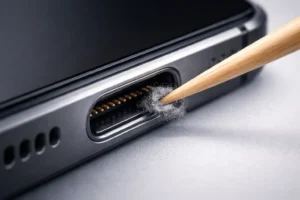
- Use a soft anti-static brush or a small puff of compressed air
- Make sure the cable fits firmly after cleaning
- Never blow into the port — moisture can cause corrosion
Fix 5 — Switch to a GaN Charger or OEM-Certified Cable
Not all chargers deliver power the same way.
Lower-quality or damaged chargers can create unstable power flow, which increases heat during charging.
A good-quality charger delivers stable power and usually runs cooler.
- Look for chargers carrying USB-IF certification (USB Power Delivery standard) — this confirms proper voltage regulation
- iPhone users: only use MFi-certified cables — uncertified USB-C and Lightning cables frequently cause heat spikes during charging
- Inspect your cable regularly — frayed insulation, bent connectors, or a loose port fit all add resistance and heat at every charge session
- In 2026, counterfeit fast chargers sold on marketplaces remain one of the most common causes of phone overheating when charging — if the charger has no clear wattage labeling or brand certification, replace it
Fix 6 — Close Background Apps and Disable 5G Temporarily
Even when your screen is off, your phone can still be working in the background.
Apps syncing in the background and constant signal searching use power, which adds extra heat while charging, even if you don’t notice it.
Close Background Apps:
- Android: Tap recent apps → swipe away all open apps → go to Settings → Battery → Battery Usage and restrict any apps consuming abnormal power
- iPhone: Swipe up to open the app switcher → swipe away all apps → Settings → General → Background App Refresh → Off
Disable 5G During Charging:
- Android: Settings → Connections → Mobile Networks → Network Mode → select LTE/4G
- iPhone: Settings → Cellular → Voice & Data → select LTE
Also temporarily disable Location Services if you are not navigating.
GPS is one of the highest-draw background processes on any phone and adds measurable heat during charging sessions.
Fix 7 — Use Airplane Mode for the First 15 Minutes of Charging
Airplane Mode reduces multiple heat sources at once.
It turns off mobile data, Wi-Fi, Bluetooth, and GPS, which lowers background activity and helps your phone stay cooler during the most intense part of charging.
- Plug in your charger
- Enable Airplane Mode immediately — swipe down for Quick Settings (Android) or open Control Center (iPhone)
- Leave it on for at least 15 minutes while the initial fast-charge peak passes
- Turn Airplane Mode off once the phone is past 50–60% and temperatures have stabilized
The 20–80% Charging Rule: Best Habit for 2026
This is the most effective long-term fix for keeping your phone cooler when charging — and the one most guides only mention in passing.
Charging from 0% to 100% every cycle puts thermal stress on the battery at both extremes.
The final stretch from 80% to 100% is the most heat-intensive phase because the battery management system slows to a trickle charge to avoid overcharging, while still maintaining high voltage.
That combination is hard on battery chemistry.
Charging from 20% to 80% keeps your phone in the easiest, coolest part of the charging curve.
According to Battery University, consistently stopping at 80% instead of charging to 100% can extend your battery’s cycle life by 200–300 additional full cycles.
Over a 2–3 year phone lifespan, that is significant.
How to Enable This Automatically
Samsung (One UI 6/7):
- Settings → Battery → Charging Settings
- Enable “Protect Battery” — limits max charge to 85% automatically
iPhone (iOS 18):
- Settings → Battery → Charging Optimization
- Select “80% Limit” — iPhone charges to 80% and holds there until you need more
Google Pixel:
- Settings → Battery → Adaptive Charging
- Enable “Adaptive Charging” — Pixel learns your schedule and avoids holding at 100% for long stretches
For a direct comparison of how battery habits affect real-world performance across today’s flagship phones, the Samsung Galaxy S25 Ultra vs iPhone 16 Pro Max Battery Test shows how charging patterns translate into daily battery life on both platforms.
Android vs iPhone: Where the Settings Differ
The fixes for phone overheating when charging are the same in principle — the paths to get there are different. Here is the direct comparison.
| Fix | Android (Samsung / Pixel) | iPhone (iOS 18) |
|---|---|---|
| Disable Super Fast Charging | Settings → Battery → Charging Settings → Toggle off Super Fast Charging | Use a lower-wattage USB-PD charger; iOS controls charge rate automatically |
| Optimized Charging (80% cap) | Settings → Battery → Protect Battery (85% cap) | Settings → Battery → Charging Optimization → 80% Limit |
| Background App Refresh | Settings → Apps → [App] → Battery → Restricted | Settings → General → Background App Refresh → Off |
| Disable 5G During Charging | Settings → Connections → Mobile Networks → LTE | Settings → Cellular → Voice & Data → LTE |
| Check Battery Health | Settings → Battery → Battery Information (Samsung) or Battery Health (Pixel) | Settings → Battery → Battery Health & Charging |
| Boot into Safe Mode | Hold power → Long press “Power Off” → Tap “Safe Mode” | Not natively available; use Settings → Privacy → Analytics to identify rogue apps |
| Check Real-Time Temperature | Dial *#*#4636#*#* for battery info screen | Third-party app required (e.g., CPU DasherX) |
Critical Warning Signs — Stop Charging Immediately
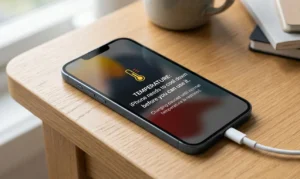
Most cases of phone overheating when charging are fixable with the steps above.
But some signs mean it’s no longer just a settings or usage issue.
Stop Charging Right Now If You See Any of These:
- Chemical or burning smell — battery electrolyte venting. Unplug immediately, take it to an open ventilated area, do not seal it in a bag
- Screen or back panel lifting or bulging — a swelling battery is a safety emergency. Do not press it, puncture it, or charge it again under any circumstances
- “Charging Paused — Temperature Too High” warning — your phone is protecting itself. Let it cool in open air for 30+ minutes before trying to charge again
- Heat concentrated at the port, not spread across the back — this points to a damaged port, corroded pins, or a failing cable, not the battery itself
Never put an overheated phone in the fridge or freezer.
The sudden temperature drop causes condensation to form inside the phone, which can short-circuit the motherboard — turning a heat problem into water damage.
The Thermistor Sensor Failure — The Hidden Warning Nobody Talks About
Your phone has a temperature sensor called a thermistor built into the charging circuit.
If that sensor is damaged or corroded, it can send a false high-temperature reading to the processor — triggering throttling and “charging paused” warnings even when the battery is completely fine and cool to the touch.
Signs of a thermistor issue: the phone reports overheating but feels cool or only mildly warm, or the warning appears consistently with one specific charger but not others.
This requires a repair shop visit — it is not something you can address at home.
Battery Health Below 80% — Time for a Replacement
If your battery health is below 80%, no charging habit change will fully solve the overheating.
The elevated internal resistance means your battery will always run hotter per charge cycle than a healthy one.
Battery replacement at an authorized service center typically runs $60–$100 and makes the phone perform like new again.
It is almost always worth it on a device less than 3 years old.
Boot Into Safe Mode to Catch a Rogue App
Android’s Safe Mode loads only system apps — no third-party apps run at all.
If your phone stops overheating in Safe Mode, a third-party app is generating the heat.
Charge in Safe Mode for 10 minutes and compare the back-panel temperature.
If it is significantly cooler, start uninstalling recently added apps one by one to find the culprit.
Is Malware Making Your Phone Overheat When Charging?
In rare cases, malware can also cause overheating — especially something called cryptojacking.
This type of malware uses your phone’s CPU and GPU to mine cryptocurrency silently in the background — 24 hours a day, including while you charge.
According to Avast’s mobile security research, cryptojacking attacks specifically target Android devices through fake apps disguised as utilities, antivirus tools, or games — and they have surged significantly in recent years.
Signs Your Phone Has Cryptojacking Malware
- Phone runs hot even when you are not doing anything — not just while charging
- Battery drains abnormally fast even on standby
- Settings → Battery Usage shows an unfamiliar app consuming 20%+ battery with near-zero screen time
- Phone feels sluggish on the home screen with no obvious reason
- The overheating started after installing a free app from an unfamiliar publisher
How to Remove It on Android and iPhone
Android:
- Go to Settings → Battery → Battery Usage — look for unknown apps using disproportionate power
- Boot into Safe Mode — if overheating stops, a third-party app is confirmed as the cause
- Uninstall recently installed apps, especially free utilities, wallpaper apps, or antivirus apps from unknown publishers
- Run Google Play Protect: Play Store → Profile icon → Play Protect → Scan Device
iPhone:
- Browser-based cryptojacking scripts can run through Safari — clear all browsing data: Settings → Safari → Clear History and Website Data
- Check Settings → Privacy & Security → Tracking — disable for any suspicious apps
- If you installed apps from outside the App Store, remove them immediately
- Review Settings → Privacy → Analytics & Improvements → Analytics Data for unusual crash logs from apps you do not recognize
How to Prevent Phone Overheating When Charging Long-Term
Fixing it today matters. Keeping it from coming back matters more.
These habits protect your battery and keep temperatures low for the full life of your phone.
- Always charge on a hard flat surface — never on a bed, pillow, or sofa. Soft surfaces trap heat underneath the phone and create a genuine fire risk in extreme overheating cases
- Clean your charging port monthly — a 30-second check with a dry toothpick prevents the resistance buildup that creates dangerous hot spots over time
- Update your OS promptly — Apple and Samsung regularly push thermal management patches. Staying on an outdated version often means running a known heat bug that has already been fixed
- Enable Optimized or Adaptive Charging — the 80% or 85% charge limit prevents the most thermally stressful charging phase from running overnight while you sleep
- Keep your phone out of hot cars, direct sun, and dashboards — ambient temperatures above 35°C add directly to charging heat. A phone left on a summer car dashboard can reach 60–80°C before you even plug it in
- Use wired GaN charging as your default — wireless charging loses 20–30% of energy as heat. For everyday charging, a certified wired GaN charger is always the cooler, faster, more battery-friendly option
Frequently Asked Questions
Is It Normal for My Phone to Get Hot While Fast Charging?
Yes, some warmth is normal during fast charging. A phone charging at 45W or above will feel warm to the touch, typically reaching 38–42°C on the back panel. It becomes a problem when the phone feels too hot to hold comfortably (above 45°C), slows down on its own, or shows a temperature warning. If that is happening consistently, work through the 7 fixes above starting with Fix #1.
Can Phone Overheating When Charging Damage the Battery Permanently?
Yes, overheating over time can damage your battery. Sustained charging temperatures above 45°C accelerate lithium-ion battery degradation — your battery reaches the 80% health threshold months or even years earlier than it should. Battery University states that every 10°C increase in sustained operating temperature can halve battery lifespan. One hot session will not destroy your battery. Consistent overheating over months will degrade it significantly faster than normal wear.
What Temperature Is Too Hot for a Phone While Charging?
Above 45°C (113°F) is where thermal throttling starts and degradation accelerates. Above 50°C (122°F), most phones pause charging automatically as a safety measure. If the phone feels too hot to hold comfortably, unplug it and let it cool down. Unplug it, remove the case, and let it cool on a hard flat surface in open air.
Does Wireless Charging Make My Phone Hotter Than a Cable?
Yes, consistently. Wireless (induction) charging is only 70–80% efficient — the remaining 20–30% is lost directly as heat from the coil-to-coil energy transfer. A phone charging wirelessly typically runs 5–10°C hotter than the same phone on a quality wired cable. If your phone overheats on a wireless pad, switch to wired charging with a certified GaN charger. It will charge faster and run cooler every time.
Is It Safe to Charge My Phone Overnight in 2026?
Modern phones have smart charging circuits that stop accepting charge at 100% — the old “overcharging” concern is largely solved. The real overnight risk is heat buildup from charging on a soft surface like a pillow for several hours with no airflow, and keeping the battery at 100% state of charge for extended periods which stresses battery chemistry. The fix is simple: enable the 80% charge limit (available on Samsung and iPhone) and always charge on a hard, flat, ventilated surface.
Conclusion
A warm phone during charging is normal — but overheating isn’t something to ignore.
If your phone feels too hot to comfortably hold, that’s your signal to act.
Start simple — remove the case, stop using the phone while charging, and place it on a cool, hard surface.
If the heat keeps coming back, look deeper — a dirty port, aging battery, low-quality charger, or background apps are usually behind it.
And long-term, your charging habits matter more than anything. Keeping your battery between 20% and 80% is one of the easiest ways to reduce heat and extend its lifespan.
Take care of the heat now, and your phone will last longer.