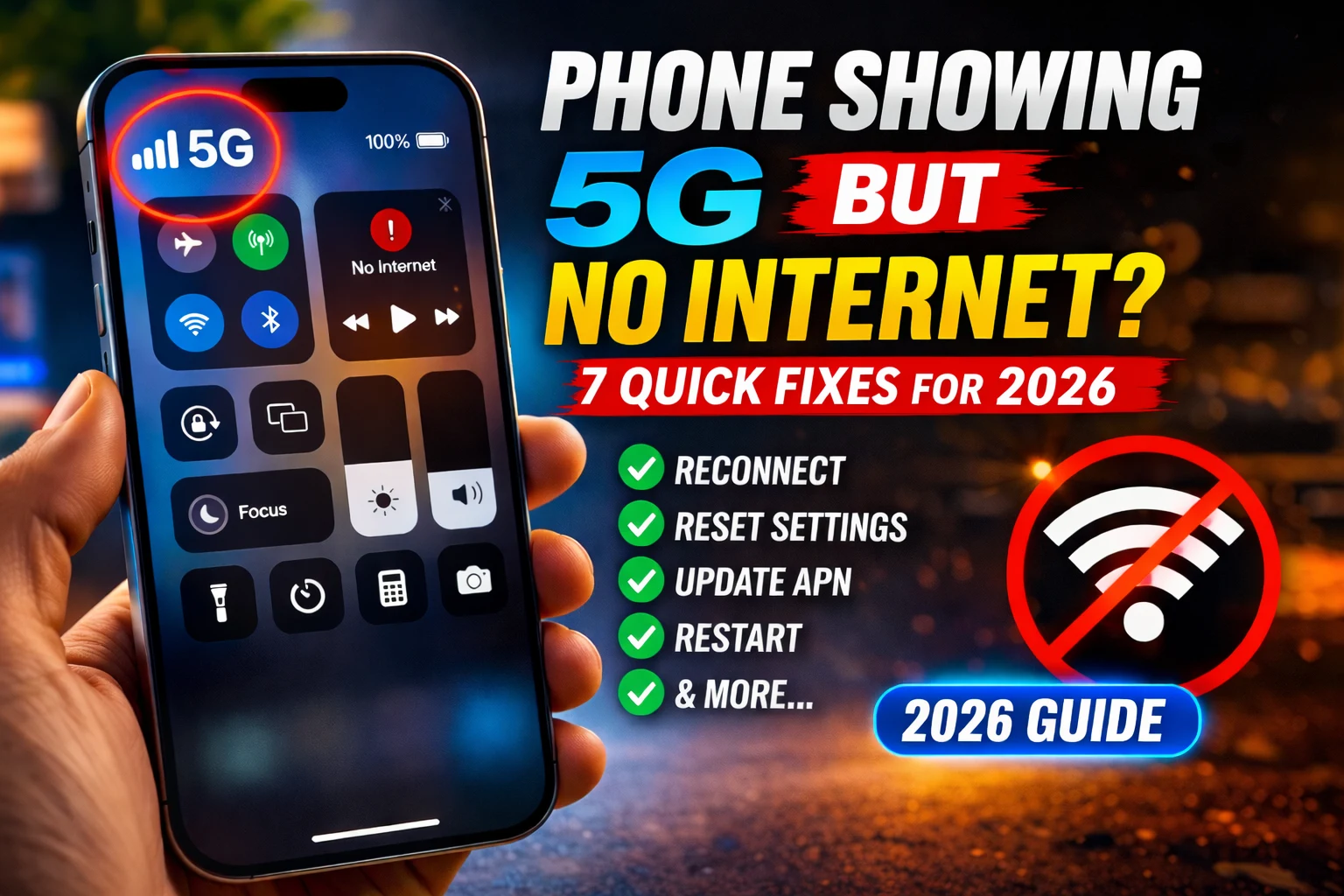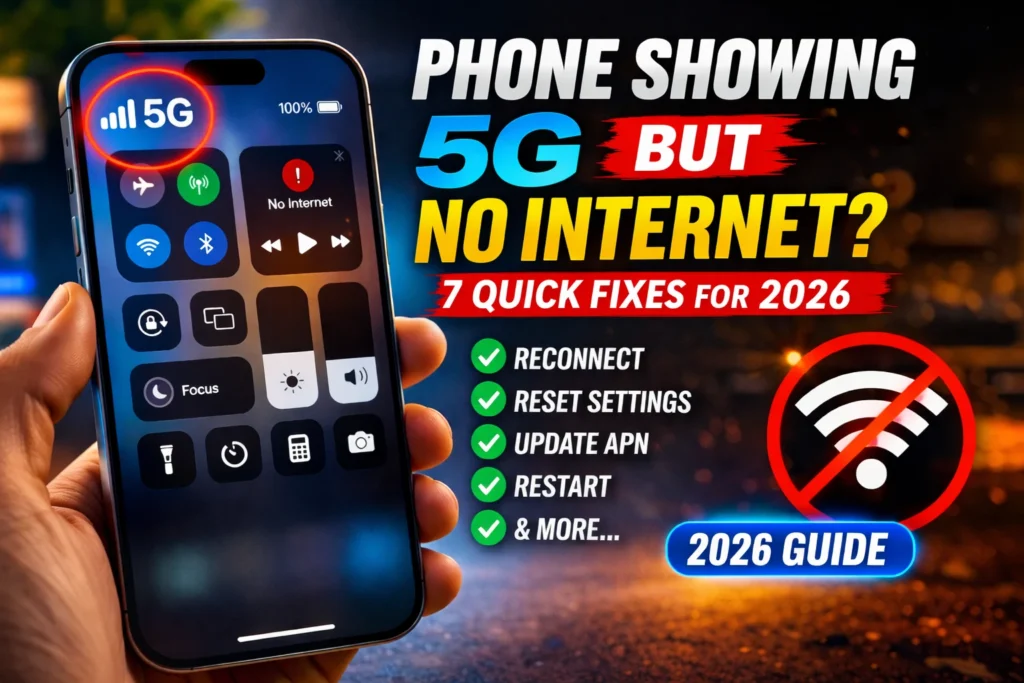
You check your phone — full 5G bars, everything looks normal.
But nothing actually loads.
Apps hang, websites won’t open, and it feels like your internet just stopped working.
It’s confusing because everything looks fine — but those signal bars don’t actually guarantee your internet is working.
In most cases, this isn’t a hardware issue.
In most situations, it comes down to a network or settings issue you can fix in a few minutes.
I’ve run into this myself more than once — especially after switching locations or updates.
Key Takeaways
Here’s what’s usually happening behind the scenes:
- Signal bars and internet are two different things — your phone can be connected to a tower while your data connection isn’t actually working.
- One common cause is a data session issue where your phone fails to reconnect properly to the network.
- Toggling Airplane Mode forces your phone to reconnect to the network, which can fix temporary connection issues quickly.
- APN settings act like a bridge between your phone and your carrier’s network — one corrupted field can stop mobile data from working while your signal still looks fine.
- In some cases, a mismatch between IPv4 and IPv6 settings can cause mobile data to stop working.
- Switching from “5G Only” to “5G/4G Auto” can help your phone fall back to a more stable connection when 5G is unreliable.
- Resetting Network Settings does NOT delete your photos — it only clears Wi-Fi passwords and network configurations.
Table of Contents
- What Does “Phone Showing 5G But No Internet” Actually Mean?
- Why Is My Phone Showing 5G But No Internet? (Root Causes)
- Quick Diagnosis Table — Find Your Fix Fast
- 7 Quick Fixes for Phone Showing 5G But No Internet
- Android vs iPhone: Does the Fix Differ?
- Device-Specific Fixes (Samsung, iPhone, Pixel)
- What If None of the 7 Fixes Work?
- How to Prevent This From Happening Again
- Frequently Asked Questions
- Conclusion
What Does Phone Showing 5G But No Internet Actually Mean?
A phone showing 5G but no internet means your device is physically connected to a 5G tower but cannot route data to the internet.
The signal icon shows the tower link — not the data connection.
Think of it like a phone line.
Full bars mean the line is open.
But if no one on the other end is responding to your data requests, nothing loads.
Your calls and texts can still work because they may use a different network path than mobile data.
Why Signal Bars and Internet Are Two Different Things
Signal bars measure radio frequency strength between your device and the nearest cell tower.
Internet data travels through a completely separate pathway called a data session or PDN connection.
It is entirely possible — and very common — for the radio link to be perfect while the data session fails silently. Your phone never shows an error.
It just shows 5G, but nothing actually works.
NSA vs SA 5G — Why This Matters in 2026
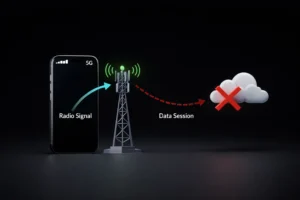
Most 5G networks in 2025–2026 still use Non-Standalone (NSA) 5G, which anchors data sessions through 4G LTE infrastructure. Standalone (SA) 5G runs independently and handles data sessions differently.
When your phone connects to NSA 5G but the LTE anchor underneath it fails, you see the 5G icon but get no internet.
This is one of the most misunderstood causes of this problem in 2026.
Why Is My Phone Showing 5G But No Internet? (Root Causes)
The 5G signal but no internet problem has several distinct causes.
Knowing which one you are dealing with saves you a lot of time.
1. Your Data Session Expired Silently
Your phone establishes a data session when it first connects to the network.
Sometimes that session expires or times out — especially after switching locations — and the phone fails to create a new one.
The 5G icon stays on your screen, but data requests go nowhere.
A quick Airplane Mode toggle forces a brand new session.
2. APN Settings Are Wrong or Corrupted
The Access Point Name (APN) is the gateway between your mobile network and the internet.
It tells your phone exactly how to connect, which IP to use, and how to authenticate with your carrier.
After a software update or SIM swap, APN settings can get corrupted.
One wrong field — like an incorrect protocol — can stop mobile data from working while your signal still looks fine.
According to Honor, APN misconfiguration is one of the leading causes of mobile data failure globally.
3. IPv6 / IPv4 Protocol Mismatch (The Fix Most People Miss)
This doesn’t happen very often, but it can show up after updates or network changes.
Your APN has a Protocol field that must match what your carrier supports.
If it is set to “IPv6 only” but your carrier uses IPv4, data requests may fail without any clear error.
The fix is usually straightforward — switching the APN Protocol to IPv4/IPv6 often resolves it.
I will walk through the exact steps below.
4. Network Congestion — The Tower Is Full
A 5G tower can serve thousands of users simultaneously.
During peak hours — concerts, sports events, morning commutes — the network can become overloaded, which slows down or blocks data requests.
Your signal stays strong because you are still registered to the tower.
But no data gets through.
5. You Have Used Up Your Data Allowance
If your monthly data cap is hit, your carrier suspends data access without disconnecting you from the network.
Your phone still shows the 5G icon with no internet.
Check your carrier app or dial a USSD code to confirm your remaining data.
6. A VPN or Private DNS Is Blocking Your Connection
Active VPNs and custom Private DNS settings (like 1.1.1.1 or 8.8.8.8) often conflict with 5G routing.
The VPN tunnel breaks while the 5G connection stays up, leaving you with connected to 5G but no connection.
Disabling your VPN and resetting Private DNS to “Automatic” fixes this immediately in most cases.
7. Carrier Outage or SIM Provisioning Issue
Sometimes the problem is on your carrier’s side.
A tower outage, a backend provisioning error, or an account-level issue can block your data while leaving your signal visible.
Your carrier can usually fix this in minutes by refreshing your account from their end.
8. Your Phone’s 5G Band Is Not Compatible
If you are using an imported phone, an unlocked device, or a phone bought in a different country, it may not support the specific 5G frequency bands your carrier uses.
You register to the tower but cannot pass data through an unsupported band.
Quick Diagnosis Table — Find Your Fix Fast
| Symptom | Most Likely Cause | Go to Fix |
|---|---|---|
| 5G icon + nothing loads at all | Expired data session or NSA 5G anchor failure | Fix #1 (Airplane Mode) |
| 5G icon + loads on Wi-Fi but not mobile data | APN settings corrupted or wrong protocol | Fix #3 (APN Reset) |
| 5G icon + internet works at night, fails in busy areas | Network congestion on 5G tower | Fix #2 (Switch to 4G/LTE) |
| 5G icon + worked before an OS update | APN protocol reset to IPv6-only by update | Fix #3 + Fix #6 |
| 5G icon + data worked until recently | Data cap hit or carrier issue | Fix #6 (Check Data Plan) |
| 5G icon + VPN is active | VPN or Private DNS conflict | Fix #5 (Disable VPN) |
| 5G icon + apps crash, no pages load | Corrupted network config | Fix #7 (Reset Network Settings) |
7 Quick Fixes for Phone Showing 5G But No Internet
Here are the 7 fixes I recommend working through in order.
Start with the quick fixes first — in most cases, you won’t need to go past the first two.
Fix 1 — Toggle Airplane Mode (Do This First)
Why it works: Airplane Mode drops all your network connections at once.
When you turn it back off, your phone re-registers with the nearest tower and creates a brand new data session.
This often fixes temporary session issues and helps your phone reconnect properly.
Steps:
- Swipe down your notification shade (Android) or open Control Center (iPhone)
- Tap the Airplane Mode icon — wait the full 30 seconds — this actually makes a difference
- Tap again to turn Airplane Mode off
- Wait 10–15 seconds for your phone to reconnect
Fix 2— Switch from 5G Only to 5G/4G Auto (If 5G Isn’t Stable)
Why it works: Sometimes the 5G data channel is congested or broken while the 4G LTE channel underneath it works perfectly.
Switching your network mode forces your phone to use a working data channel.
This is often one of the quickest fixes when full 5G signal shows but data isn’t working due to congestion.
Android Steps:
- Go to Settings → Connections → Mobile Networks → Network Mode
- Select “LTE/3G/2G (Auto)” or “5G/LTE/3G/2G Auto”
- Wait 10 seconds — test your internet
- Switch back to 5G preferred after a minute to see if it holds
iPhone Steps:
- Go to Settings → Cellular → Voice & Data
- Change from “5G On” to “5G Auto” or “LTE”
- Test your connection, then switch back to 5G Auto
Fix 3 — Check and Fix Your APN Settings
Why it works: Incorrect APN settings are a common cause of mobile data not working despite 5G signal.
Resetting them to default clears any corruption introduced by updates or SIM swaps.
Android — Reset APN to Default:
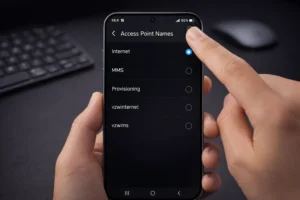
- Go to Settings → Network & Internet → Mobile Network → Advanced → Access Point Names
- Tap the three-dot menu (top right)
- Select “Reset to Default”
- Restart your phone
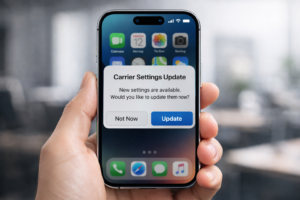
iPhone — Update Carrier Settings:
- Go to Settings → General → About
- Wait 10–15 seconds
- If a carrier update is available, a prompt will appear — tap Update
Fix 4 — Fix the IPv6 / IPv4 Protocol (The Hidden Fix)
Why it works: This is something many guides don’t mention, but it can fix the issue in certain cases.
When your APN Protocol is set to IPv6 only but your carrier routes data over IPv4, data may stop working without any clear warning.
The 5G icon stays on.
You’ll still see 5G, but nothing actually loads.
Android Steps (Only available on Android):
- Go to Settings → Network & Internet → Mobile Network → Access Point Names
- Tap your active APN (the one with a filled circle next to it)
- Scroll to find the “APN Protocol” field
- Change it from
IPv6toIPv4/IPv6 - Also change “APN Roaming Protocol” to
IPv4/IPv6 - Save and restart your phone
Fix 5 — Disable VPN and Private DNS
Why it works: A VPN changes how your internet traffic is routed over your connection.
If that tunnel breaks — which happens often during tower handoffs and network changes — your data can stop working while your 5G signal still looks normal.
Disable VPN (Android & iPhone):
- Open your VPN app and disconnect it completely
- On Android, also go to Settings → Network → VPN and ensure no VPN is active
- On iPhone, go to Settings → General → VPN & Device Management → VPN and toggle it off
Reset Private DNS (Android):
- Go to Settings → Network & Internet → Private DNS
- Select “Automatic” (not “Off” — that disables DNS security)
- Restart and test your connection
Some users report that VPN apps can interfere with mobile data — especially when switching between networks.
If you’re using a VPN, try turning it off temporarily to see if your connection comes back.
Fix 6 — Check Data Plan, Roaming Status & Data Saver
Why it works: Three account-level issues can cause your phone to show 5G with no internet — a hit data cap, disabled data roaming, or an aggressive Data Saver setting blocking your apps.
Check Your Data Balance:
- Open your carrier app or dial
*100#(varies by carrier) to check your remaining data - If you are out of data, top up or wait for your billing cycle to reset
Check Data Roaming:
- Android: Settings → Connections → Mobile Networks → toggle Data Roaming ON
- iPhone: Settings → Cellular → toggle Data Roaming ON
Turn Off Data Saver / Low Data Mode:
- Android: Settings → Network → Data Saver → toggle OFF
- iPhone: Settings → Cellular → Cellular Data Options → Low Data Mode → toggle OFF
Check Per-App Mobile Data Permissions:
- iPhone: Settings → Cellular → scroll down to your app (e.g., Chrome) → ensure it is toggled ON
- Android: Settings → Apps → [App Name] → Mobile Data → enable “Allow background data”
Fix 7 — Reset Network Settings (The Last Resort)
Why it works: This clears every corrupted network configuration at once — APN entries, DNS cache, carrier settings, and more.
It is the most thorough software fix for the 5G icon shows but data not working problem.
Android Steps:
- Go to Settings → General Management (or System) → Reset
- Tap “Reset Network Settings”
- Enter your PIN and confirm
- Your phone restarts automatically — reconnect to Wi-Fi and test mobile data
iPhone Steps:
- Go to Settings → General → Transfer or Reset iPhone → Reset
- Tap “Reset Network Settings”
- Enter your passcode — your iPhone restarts automatically
Android vs iPhone: Does the Fix Differ?
Yes — the phone showing 5G but no internet fix steps differ between Android and iPhone. Here is a direct comparison.
| Fix | Android | iPhone (iOS 18) |
|---|---|---|
| Airplane Mode | Quick Settings panel → Airplane icon | Control Center → Airplane icon |
| Switch Network Mode | Settings → Connections → Mobile Networks → Network Mode | Settings → Cellular → Voice & Data → LTE or 5G Auto |
| APN Settings | Fully accessible — Settings → Mobile Networks → APN | Managed by carrier; update via Settings → General → About |
| IPv6 Protocol Fix | Available inside APN settings | Not directly accessible; requires carrier settings update |
| VPN Disable | Settings → Network → VPN | Settings → General → VPN & Device Management |
| Reset Network Settings | Settings → System → Reset → Reset Network Settings | Settings → General → Transfer or Reset → Reset → Reset Network Settings |
| Data Saver | Settings → Network → Data Saver | Settings → Cellular → Low Data Mode |
Device-Specific Fixes — Samsung, iPhone, and Google Pixel
Samsung Galaxy S24 / S25 — 5G Signal No Internet
Samsung devices have a specific Diagnostic Tool inside the Samsung Members app.
This runs an automatic network scan and often identifies the exact problem without any manual steps.
- Open the Samsung Members app → tap Get Help → Interactive Checks → Phone
- Run the Network diagnostic — it flags APN issues, signal problems, and data routing failures
- If the diagnostic is clean, go to Settings → General Management → Reset → Reset Network Settings
iPhone 15 / 16 — iOS 18 5G Issues
The iPhone showing 5G but no internet iOS 18 issue often comes down to a missing carrier settings update.
Apple pushes these silently, but they do not always install automatically.
- Go to Settings → General → About — wait 15 seconds for a carrier update prompt
- If no prompt appears, toggle 5G Auto under Settings → Cellular → Voice & Data
- If the problem started after an iOS 18 update, try Settings → General → Transfer or Reset → Reset Network Settings
Google Pixel 9 — 5G Connected but No Data
The Pixel 9 5G connected but no data issue is most often caused by an APN protocol mismatch after a Google system update.
- Go to Settings → Network & Internet → Internet → [Your Carrier] → Settings icon → Access Point Names
- Tap your active APN and check the Protocol field — set it to
IPv4/IPv6 - Also check that Data Saver is off under Settings → Network → Data Saver
What If None of the 7 Fixes Work?
How to Check if It’s a Carrier Outage
Before assuming your phone is broken, check if the problem is on your carrier’s end. Use these quick methods:
- Visit Downdetector.com and search your carrier’s name — it shows real-time outage reports from users in your area
- Check your carrier’s official Twitter/X account — carriers post network status updates there first
- Ask a friend on the same network in the same area if they have internet — if they do not, it is a carrier issue
When to Reseat or Replace Your SIM Card
A dirty or misaligned SIM card can maintain a signal connection while failing to authenticate data.
This causes the 5G icon showing but data not working problem.
- Use the SIM ejector pin to remove your SIM tray
- Clean the gold contacts gently with a dry cloth or soft eraser
- Re-insert firmly and restart your phone
- If cleaning does not help, ask your carrier for a free SIM replacement — this is standard and usually free
eSIM-Specific Fixes in 2026
More phones in 2026 use eSIM only — no physical SIM slot. If you are on an eSIM and experiencing the 5G but no internet issue, try these steps:
- Android: Settings → Network → SIMs → tap your eSIM → toggle it off and back on
- iPhone: Settings → Cellular → tap your eSIM plan → toggle “Turn On This Line” off and back on
- If toggling does not help, delete the eSIM profile and re-download it from your carrier app — your number and plan stay the same
What to Say When You Call Your Carrier
When you call support, most agents follow a generic troubleshooting script.
Skip it by asking specifically:
- “Can you check my account for a data provisioning error?”
- “Can you push a fresh data session to my device?”
- “Is there a known outage or congestion issue at the tower serving [your location]?”
These specific questions get escalated faster and solved in minutes instead of hours.
How to Prevent “5G Showing But No Internet” From Happening Again
Most people fix the problem and move on — but it keeps coming back.
Here is how to stop it from recurring.
- Use “5G Auto” not “5G On” — Auto mode intelligently falls back to LTE when 5G data is congested. “5G On” forces a broken connection.
- Keep carrier settings updated — On iPhone, check Settings → General → About monthly. On Android, keep your carrier app updated.
- Set APN Protocol to IPv4/IPv6 — Do this once and it usually stays. Check it again after every major OS update.
- Disconnect your VPN before switching networks — VPN tunnels break during tower handoffs. Reconnect after your data is stable.
- Monitor your data usage weekly — Running out of data mid-month is the most easily preventable cause of this problem.
Frequently Asked Questions
Why Does My Phone Say 5G But Act Like 3G?
This usually means your 5G data channel is heavily congested. You are connected to a 5G tower, but the tower has so many users that it throttles your data to near-3G speeds. Switching to “5G/4G Auto” often gives you faster speeds because 4G LTE may be less congested at that moment.
How to Force My Phone to Use 4G Instead of 5G?
On Android, go to Settings → Connections → Mobile Networks → Network Mode → select “LTE/3G/2G.” On iPhone, go to Settings → Cellular → Voice & Data → select “LTE.” This forces your phone to use 4G only. Switch back to 5G Auto when you want to resume using 5G.
Is My SIM Card Broken If I Have 5G But No Internet?
Not necessarily broken — but it may be dirty, slightly misaligned, or flagged for re-provisioning on your carrier’s backend. Try reseating it first. If that does not work, your carrier will replace it for free. A new SIM card takes about 10 minutes to activate and fixes provisioning issues instantly.
Does Resetting Network Settings Delete Photos?
No. Resetting Network Settings on both Android and iPhone only removes saved Wi-Fi networks, Wi-Fi passwords, Bluetooth pairings, VPN settings, and APN configurations. Your photos, contacts, apps, messages, and personal files are completely untouched.
Why Does This Happen More After a Software Update?
Software updates sometimes reset APN settings — particularly the Protocol field — back to a default that may not match your carrier. They can also reset network mode preferences or introduce bugs in how 5G sessions are established. Always check your APN protocol setting after a major OS update.
Does Turning Off 5G Save Battery?
Yes, significantly — especially if your 5G signal is weak. When your phone is on the edge of 5G coverage, it constantly switches between 5G and LTE, which drains the battery fast. Switching to “5G Auto” (iPhone) or “5G/LTE Auto” (Android) lets your phone conserve power by defaulting to LTE when 5G is not stable.
Is the “5G But No Internet” Problem a Hardware Issue?
Rarely. In most cases, this comes down to software, settings, or carrier-side issues rather than a hardware fault. Hardware failure would typically show as “No Service” rather than a 5G icon with no data. If all 7 fixes fail and your carrier confirms no outage, then a visit to a service center makes sense.
Conclusion
A phone showing 5G but no internet can feel confusing at first because everything looks fine on the surface. Full bars. 5G icon.
But nothing actually works.
Now you know why — signal and data are two completely different pathways.
And now you have a set of practical fixes to work through, from the 30-second Airplane Mode trick to the deeper IPv4/IPv6 protocol fix that most guides completely ignore.
Start with Fix #1. In many cases, people get back online within a minute or so.
If none of these fixes worked, the issue may be specific to your device or carrier.
In that case, it’s worth contacting your network provider for a direct check.