You open an app you use every day — maybe Instagram, WhatsApp, or a game — and suddenly it closes without warning.
You try again. It crashes again.
This is one of the most frustrating phone problems because it feels random — and most people don’t know where to start.
Apps can crash on both iPhone and Android, and it’s one of the most common phone problems people face today.
In most cases, it has nothing to do with your phone being broken or outdated.
From what I see most often when helping people fix crash issues, the cause is usually something simple, low storage, an outdated app, a temporary system glitch, or the phone getting too hot during heavy use.
Sometimes only one app is affected.
Other times, multiple apps may start closing unexpectedly.
The good news is that once you identify the cause, most crashes can be fixed in just a few minutes.
This guide walks you through the most common real-world reasons apps keep closing — and the simple fixes that usually stop the problem.
Short answer: most crashes are linked to memory limits, outdated apps, or corrupted data — not hardware failure.
The promise: Follow these 8 proven fixes to stop app crashes on iPhone and Android — starting with the easiest.
In everyday use, crashes are often triggered by something simple — like running out of space, an app update conflict, or the phone being under heavy load.
If only one app is crashing, the problem is typically with that app itself.
If multiple apps keep closing, it is more likely related to your phone’s storage, software, or overheating.
In most cases, simple steps like restarting the phone, updating apps, or clearing temporary data will fix the issue.
This pattern shows up across many everyday devices , whether it’s an older budget phone or a newer flagship — and is rarely linked to permanent hardware faults.
Who This Is For
- Anyone whose apps keep closing unexpectedly
- iPhone and Android users worldwide
- Users in hot climates — UAE, Dubai, Middle East, South Asia, Africa
- Anyone who tried restarting and it did not help
- Not for developers looking for code-level fixes
Key Takeaways
- The most common causes include memory issues, low storage, OS conflicts, and background process interference.
- If one app crashes, the issue is usually isolated to that app.
- If many apps crash — check your storage or software first.
- Overheating is a real (and often overlooked) cause of app crashes.
- In most cases, you won’t need a factory reset.
- Most fixes take under five minutes.
Common Signs That Help You Identify the Cause Faster
Noticing when the crash happens is often the fastest way to identify the real cause.
- Apps crash only after long use → heat or memory pressure
- Apps crash immediately on launch → permission or corrupted data
- Phone feels slow everywhere → storage or system issue
Table of Contents
- How to Tell What Is Actually Causing the Crash
- Why Do Apps Crash on Phones?
- 8 Quick Fixes to Stop Apps Crashing
- Quick Diagnosis Tables
- Fixes for iPhone Users
- Fixes for Android Users
- App-Specific Troubleshooting
- When to Worry — Is It a Hardware Problem?
- Hot Climate Special — UAE and Dubai Users
- How to Prevent Apps from Crashing in the Future
- FAQ
- Conclusion
1. How to Tell What Is Actually Causing the Crash
This simple check saves a lot of time.
Many people reinstall apps or even reset their phone without realizing the issue was just low storage or a single buggy update.
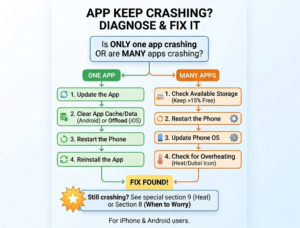
Is it one app or many apps crashing?
If only one app crashes — the problem is almost always that specific app.
If multiple apps crash — the problem is usually your phone’s storage, software, or temperature.
That single answer tells you exactly where to start.
Do not waste time reinstalling every app if your storage is actually the issue.
2. Why Do Apps Crash on Phones?
An app crashes when something stops it from working properly — so the phone closes it suddenly instead of letting it freeze or stay stuck.
These problems come from bugs, incompatible OS versions, low storage, or poor network connectivity.
Outdated App Version
The app is not compatible with your current OS. An update from the developer usually fixes this immediately.
Corrupted Cache or Data
Temporary files have become damaged over time. Clearing the cache removes the damaged files without deleting your personal data.
Low RAM or Memory
Mobile operating systems constantly monitor memory usage. If an app takes up too much, the system forces it to close.
In real use, this often looks like apps becoming slower and slower before suddenly closing.
On older devices or phones with many apps open, this behavior is especially common.
Software Bugs
Glitches in the app code or the OS itself. These are fixed through updates from the developer or Apple and Google.
Insufficient Storage
Your phone needs free space to run apps smoothly.
When storage gets very low, some apps may fail to load properly or close unexpectedly because the system cannot create the temporary files they need.
Conflicting Permissions
The app has been denied access to something it needs — camera, storage, location, or microphone.
Some apps are designed to stop working completely if a required permission is turned off — which can feel like a crash to the user.
3. 8 Quick Fixes to Stop Apps Crashing
Work through these in order. Stop when the crashes stop.
Fix 1 — Force Close and Reopen the App
This clears the app from memory and gives it a clean start.
On iPhone:
- Swipe up from the bottom of the screen and pause in the middle
- Swipe up on the crashing app to close it
- Wait 10 seconds then reopen

On Android:
- Tap the square Recent Apps button
- Swipe the crashing app off the screen
- Wait 10 seconds then reopen
If the app works after this, a stuck background process was the cause.
Fix 2 — Restart Your Phone
Restarting sounds basic, but it solves more crash problems than most people expect because it forces every background process to start fresh.
It wipes stuck processes, memory leaks, and corrupted temporary files.
On iPhone:
Hold the side button and volume down. Slide to power off. Wait 30 seconds. Turn it back on.
On Android:
Hold the power button. Tap Restart. Wait for it to fully boot before opening the app.
Fix 3 — Update the App
Outdated app versions may not be compatible with your current OS — causing crashes that a simple update will fix.
On iPhone:
App Store → tap your profile icon → scroll down → tap Update next to the crashing app
On Android:
Play Store → tap your profile icon → Manage Apps and Device → Update the crashing app
If the app just updated and started crashing after that, check the app’s reviews in the store.
If many others report the same crash, a fix is usually coming within days.
Fix 4 — Update Your Phone’s Software
A phone software update can fix system-level bugs that cause crashes.
On iPhone:
Settings → General → Software Update
On Android:
Settings → System → System Update
Fix 5 — Free Up Storage Space
Low storage is one of the most common causes we see when users report multiple apps crashing at once.
When storage runs low, apps crash because the device cannot store the temporary data it needs to function.
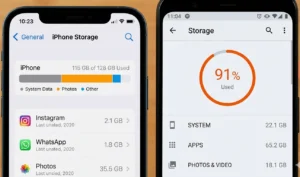
On iPhone: You can use the Offload feature to save space without losing your data.
Unlike deleting, offloading an app removes the app itself but keeps your documents and settings safe.
To manage apps: Settings → General → iPhone Storage
To clear Safari cache: Settings → Apps → Safari → Clear History
On Android:
Settings → Storage.
If a specific app won’t stop closing, you can fix an Android app that isn’t working by clearing its individual cache.
Keep at least 10–15% of your storage free at all times.
For a 128GB phone, keep at least 13GB free.
Fix 6 — Check App Permissions
Some apps crash on launch simply because they have been denied a permission they need.
On iPhone:
Settings → scroll down to the app name → check which permissions are on or off → toggle on what the app needs
On Android:
Settings → Apps → select the app → Permissions → allow what it needs
Check this before reinstalling. It is a ten-second fix most people miss entirely.
Fix 7 — Test in Safe Mode — Find the Rogue App
Safe Mode loads only your core operating system.
No downloaded apps run in the background.
If your phone is faster and more stable in Safe Mode, a third-party app is causing the crashes.
Android Safe Mode:
Hold Power button → long-press Restart → tap Safe Mode
iPhone equivalent:
There is no Safe Mode on iOS.
Delete recently installed apps one by one and restart after each until the crashes stop.
Fix 8 — Check Your Internet Connection
Some apps need a stable connection to work.
A weak or unstable signal can sometimes cause apps to freeze, fail to load properly, or close unexpectedly.
Switch between Wi-Fi and mobile data to test. Use Airplane Mode to reset the connection, then reconnect.
Social media apps, banking apps, streaming apps, and navigation apps are the most likely to crash from a bad connection.
4. Quick Diagnosis Tables
What Your Crash Pattern Tells You
| What You Are Experiencing | Most Likely Cause | Fix to Try First |
|---|---|---|
| Only one app crashes | Corrupted app data or bad update | Update or clear cache for that app |
| Many apps crash at once | Low storage or system issue | Free up storage — keep 15% free |
| App crashes immediately on launch | Permission conflict or corrupted install | Check permissions — then offload and reinstall |
| Crashes after 10–15 mins of use | Overheating or thermal throttling | Move to shade, remove case, close background apps |
| Crashes only on mobile data | Poor network connection | Switch to Wi-Fi or reset network |
| Crashes after a recent OS update | App not updated for new OS | Update all apps in App Store or Play Store |
| Phone faster in Safe Mode | Third-party app is the cause | Uninstall recently added apps one by one |
| Crashes even after factory reset | Hardware failure | Contact Apple or Samsung Support |
iPhone vs Android Fix Comparison
| Fix | iPhone Steps | Android Steps |
|---|---|---|
| Force close app | Swipe up → pause → swipe app away | Recent Apps button → swipe app away |
| Clear app cache | Offload App via iPhone Storage settings | Settings → Apps → Storage → Clear Cache |
| Check permissions | Settings → scroll to app → toggle permissions | Settings → Apps → app name → Permissions |
| Update app | App Store → profile → Update | Play Store → profile → Manage Apps → Update |
| Safe Mode | Delete apps one by one — no Safe Mode on iOS | Hold Power → long-press Restart → Safe Mode |
| Reset settings | Settings → General → Reset → Reset All Settings | Settings → General Management → Reset |
| Check Google services | Not applicable | Settings → Apps → Google Play Services → Update |
| Battery optimization | Settings → Battery → Background App Refresh → Off | Settings → Apps → app → Battery → Unrestricted |
5. Fixes for iPhone Users
Try these if the quick fixes above did not stop the crashes.
Offload and Reinstall the App
Settings → General → iPhone Storage → find the app → tap Offload App.
This removes the app but keeps your data.
Reinstall from the App Store — your data comes back automatically.
Use Offload before Delete.
Offload keeps everything.
Delete removes it all.
Clear Safari or App Cache
For Safari: Settings → Apps → Safari → Clear History and Website Data
For other apps: go into the app’s own settings.
Some apps include a cache-clear option inside their own settings, but many iPhone apps do not — in those cases reinstalling the app is often the only way to fully clear temporary files.
Reset All Settings
This resets every system setting without deleting any photos, apps, or personal data.
Settings → General → Transfer or Reset iPhone → Reset → Reset All Settings
This fixes many crashes caused by a corrupted setting. Try this before a factory reset.
Check for iOS Beta Issues
If you are running a beta version of iOS, crashes in certain apps are expected. Beta software is not fully stable.
Consider switching back to the public release version if crashes are frequent.
6. Fixes for Android Users
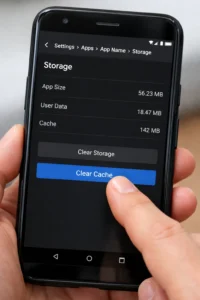
Clear App Cache and Data
Settings → Apps → select the crashing app → Storage → Clear Cache.
If clearing cache does not stop the crashes, tap Clear Data. This resets the app completely and may log you out — write down your login details first.
Uninstall and Reinstall the App
If clearing data did not work, uninstall completely. Then reinstall from the Play Store. This removes all corrupted files and gives the app a clean start.
Disable Battery Optimization for the App
Android’s battery optimization restricts background activity.
For some apps this causes crashes when they try to run a background process and get blocked.
Settings → Apps → select the app → Battery → select Unrestricted
Check Google Play Services
Outdated Google Play Services can cause compatibility issues and crashes across multiple apps simultaneously.
Open the Play Store → search Google Play Services → tap Update if available.
Updating Google Play Services can resolve compatibility issues that sometimes affect several apps at the same time.
7. App-Specific Troubleshooting
Different types of apps crash for different reasons.
Social Media — Instagram, TikTok, Facebook
An outdated version is the most common crash cause.
Update the app first. If crashes continue, clear the cache.
If the app shows a login loop — log out completely, clear the cache, then log back in fresh.
Games — PUBG, Candy Crush, Genshin Impact
Games need both storage and RAM. Check that you have at least 2GB of free storage before launching.
Lower the in-game graphics settings if crashes happen mid-session.
In Genshin Impact specifically, crashes during loading are almost always caused by insufficient storage or RAM.
Banking and Finance Apps
Do not clear the data on banking apps — that may trigger a security lock.
Clear the cache only. Check for a pending update first.
Some banking apps run continuous background security checks, which can occasionally affect performance on older devices or phones with limited memory.
Camera and Photo Apps
Camera apps crash almost exclusively because of permission conflicts or full storage.
Check that the camera app has permission to access the camera, microphone, and photos.
Then check that you have enough free space to save new photos.
8. When to Worry — Is It a Hardware Problem?
Most crashes are software. But some are hardware. Here is how to tell the difference.
Phone Overheating
When internal temperature sensors detect overheating, the phone reduces performance to cool down.
Apps that need full processing power crash the moment that power is cut.
Signs: crashes happen after 10–15 minutes of use, the phone feels hot, and multiple apps crash at the same time. See Section 8 for the full fix.
Failing Storage Chip
If crashes continue across different apps even after a factory reset, it may indicate a deeper hardware issue such as storage or memory faults, although this is much less common than software causes.
If crashes continue even after a factory reset, hardware failure becomes a possibility — although this is far less common than software causes.
Water Damage History
Corrosion from past water exposure causes intermittent crashes that look like software problems but are not.
If your phone has been wet before and crashes are unpredictable, corrosion may be the cause.
When to Factory Reset
Factory reset is a last resort.
Only do it after all eight fixes have failed and crashes continue across multiple apps.
Back up everything first.
When to Contact Support
Contact Apple Support or Samsung Care if:
- Apps crash even after a factory reset
- The phone gets hot during simple tasks like texting
- The battery looks swollen or the screen is lifting
- The phone shuts down randomly with battery remaining
- Crashes started after a physical drop or water exposure
9. Hot Climate Special — UAE and Dubai Users
This section is for users in the UAE, Dubai, Saudi Arabia, Qatar, India, Pakistan, and any region where summer temperatures regularly exceed 35°C.
In hotter regions such as Dubai or other parts of the Middle East and South Asia, users often report crash patterns that are linked to heat rather than software bugs.
Many troubleshooting guides overlook what happens to phones during extreme summer heat — especially in places where outdoor temperatures regularly reach 45°C.
What Heat Does to Your Apps
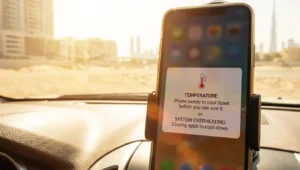
Thermal throttling occurs when your phone gets too hot.
When internal temperature sensors detect overheating, the phone immediately reduces performance to cool down.
When the phone reduces performance to cool down, demanding apps like games or navigation apps may suddenly close or become unstable.
Apple’s safe operating temperature for iPhone is 0–35°C.
Dubai’s average summer high is 41–45°C.
The ambient air temperature alone can push your phone past its safe limit — before you have even started a demanding task.
Signs That Heat Is Causing Your Crashes
- Apps crash after 10–15 minutes, not immediately on launch
- The phone feels warm or hot in your hand
- Crashes happen more outdoors or in summer
- Multiple apps crash at the same time
How to Fix It
- Move to shade immediately
- Remove your phone case — cases trap heat
- Close all background apps
- Turn off 5G if you are on Wi-Fi — the 5G modem generates significant heat
- Lower screen brightness
- Do not charge and use heavily at the same time
Let the phone rest for 10 minutes in a cool shaded place.
Once the phone cools down, crashes often reduce or stop completely.
Specific Situations in the UAE
In the car: A phone mounted on a dashboard in direct sun will overheat fast.
Keep the AC vent pointed at the phone mount. Use a windshield sun shade.
Avoid charging while navigating in a hot car.
Photography outdoors: Both iPhone and Android will show temperature warnings after 5–10 minutes of continuous shooting in 40°C+ conditions.
Keep the phone in a cool bag between shots.
Gaming indoors without AC: A room above 30°C is enough to trigger throttling and crashes during heavy games within 10 minutes. A 22°C air-conditioned room is ideal.
10. How to Prevent Apps from Crashing in the Future
Fix the crash today. Stop it coming back tomorrow.
Enable Auto-Update for Apps
On iPhone: App Store → your profile → turn on Automatic Updates
On Android: Play Store → your profile → Settings → turn on Auto-update apps
This prevents version mismatches between your apps and your OS — the most common crash cause.
Restart Your Phone Weekly
A weekly restart clears memory leaks and stuck background processes before they build up enough to cause crashes.
Set a weekly reminder if you need to.
Avoid Cleaner or Booster Apps
These apps promise to speed up your phone and fix crashes.
Most make things worse.
Both iOS and Android manage their own memory automatically.
Modern versions of iOS and Android already manage memory and background processes automatically, so cleaner or booster apps rarely provide measurable improvements.
Download Apps Only from Official Stores
Apps from outside official stores may be corrupted or affected by malware — a common cause of crashes that is completely avoidable.
Only install from the App Store on iPhone and the Google Play Store on Android.
Keep at Least 15% Storage Free
Check your storage once a month.
Delete old photos and videos.
Move content to cloud storage. A phone with breathing room runs apps far more reliably.
11. Frequently Asked Questions
12. Conclusion
In the majority of cases, app crashes are caused by software issues, and many can be resolved in just a few minutes once the real cause is identified.
In most situations, you will solve the crash long before reaching the final steps.
Work through the fixes patiently — and pay attention to patterns like heat, storage warnings, or recent updates.
- Force close and reopen the app
- Restart your phone fully
- Update the crashing app
- Update your phone’s software
- Free up storage — keep 15% free
- Check app permissions
- Test in Safe Mode to find a rogue app
- Check your internet connection
If your whole phone is slow, not just apps — read our guide: Why Is My Phone Slow After an Update?
If crashes continue after trying these steps, focus on patterns, when the crash happens, what changed recently, and whether heat or storage warnings appear — because those clues usually lead to the real fix.