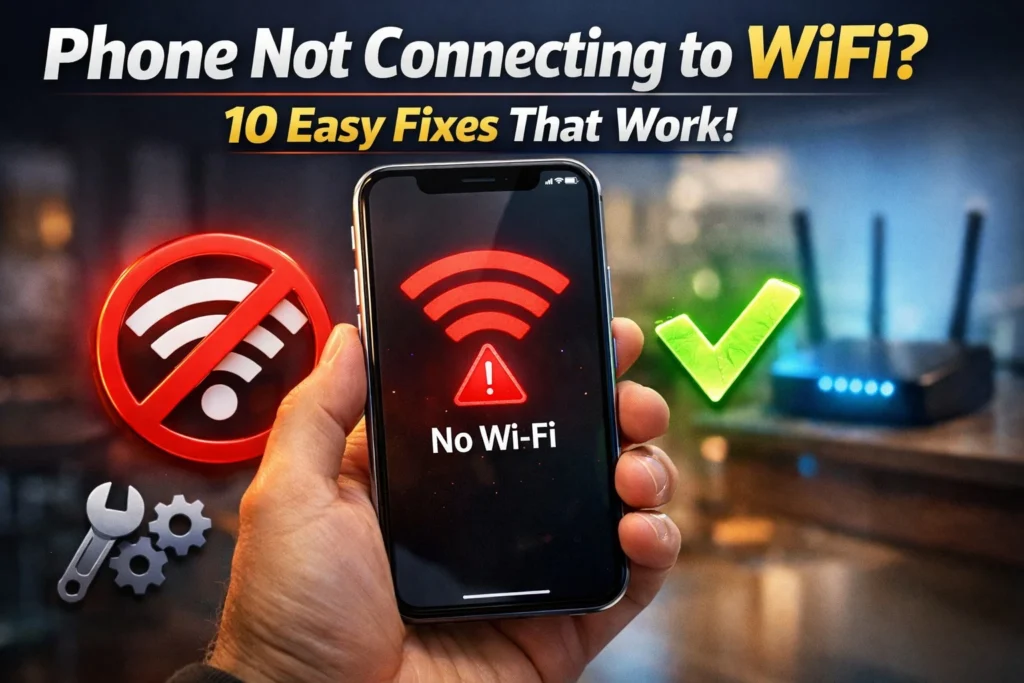
Why is my phone not connecting to WiFi? This usually happens because of a small problem with your phone, your WiFi router, or the saved network settings.
In many cases, the fix is simple.
Your phone may need a restart, the WiFi password might be wrong, or the network connection could have a small glitch.
I’ve seen this happen many times, and most people fix it in just a few minutes.
Try restarting your phone and router first, then reconnect to the WiFi network.
These easy steps solve most WiFi connection problems.
Your WiFi is working. Your laptop is streaming. But your phone? It just sits there, refusing to connect.
I’ve been there — and it’s one of the most annoying tech problems you can face.
The good news? In most cases, you can fix it in under five minutes at home.
No tech skills needed.
In this guide, I will show you exactly why your phone won’t connect to WiFi and walk you through every fix — starting with the fastest ones.
This covers all four problems people search for most: phone not connecting to WiFi, phone connected but no internet, WiFi keeps disconnecting, and Android not connecting to WiFi.
Quick Answer: Why Won’t My Phone Connect?
- Wrong or corrupted WiFi password saved on your phone
- Your phone or router needs a restart
- An IP address conflict is blocking the connection
- The router is working but has no internet signal
- Your phone and router are on different WiFi bands (2.4 vs 5GHz)
- A software glitch in your phone’s network settings
- Your router’s MAC filter is blocking your phone
1. How Your Phone Connects to WiFi (And Where It Goes Wrong)
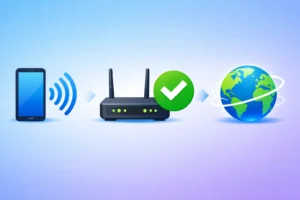
When you tap a WiFi network, three things need to work at the same time:
- Your phone finds the network and sends a request to the router
- The router checks the password and gives your phone an IP address
- Your phone uses that IP address to send and receive data from the internet
A failure at any of these three stages causes a WiFi problem.
Knowing which stage failed tells you exactly which fix to use — instead of trying everything blindly.
2. 10 Step-by-Step Fixes (Easiest to Advanced)
Work through these in order.
I’ve put the fastest fixes first — most people solve the problem in steps 1 through 3.
Restart Your Phone and Router
This fixes more WiFi problems than any other step.
A restart clears stuck processes and forces a clean connection from the start.
Unplug the router, wait a full 30 seconds (not just 5), then plug it back in.
Wait 60 seconds before testing.
- Hold the power button
- Tap Restart
- Wait for full boot
- Hold side + volume down
- Slide to power off
- Wait 30s, then turn on
Forget the Network and Reconnect
Saved WiFi profiles can become corrupted over time.
Deleting the saved network forces your phone to start fresh — new IP address, clean connection data.
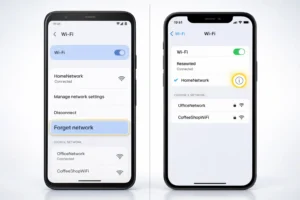
- Settings → WiFi
- Long press the network name
- Tap Forget Network
- Reconnect with password
- Settings → WiFi
- Tap (i) next to network
- Tap Forget This Network
- Reconnect with password
Double-Check the WiFi Password
WiFi passwords are case-sensitive.
One wrong character blocks the whole connection.
Find the correct password on the sticker on the back of your router, or log into your router at 192.168.1.1 in any browser.
- Capital O (letter) vs 0 (number)
- Lowercase l (letter) vs 1 (number)
- Accidental space at the start or end
- Router was reset — now using its factory default password
Toggle Airplane Mode On and Off
Airplane mode shuts down your phone’s wireless hardware completely, then restarts it when you switch it off.
It’s a faster fix than a full restart for most WiFi glitches.
- Swipe down from the top of your screen
- Tap the Airplane Mode icon (ON)
- Wait 15 seconds
- Tap it again (OFF)
- Let your phone find the network and reconnect
Check the WiFi Band (2.4GHz vs 5GHz)
Modern routers broadcast two separate signals.
Older phones may not support 5GHz, and some phones have trouble connecting to it even when they technically can.
- 2.4GHz — Slower, but better range. Works with all phones.
- 5GHz — Faster, shorter range. Not supported by all older phones.
If your router shows two network names (like “HomeWiFi” and “HomeWiFi_5G”), try the 2.4GHz version first.
If you upgraded to a new WiFi 6 or WiFi 7 router, check that your phone supports the same standard.
Many older phones support WiFi 5, while newer models may support WiFi 6, 6E, or WiFi 7.
A WiFi 7 router still works with older phones, but some advanced security settings may block older devices.
Check your router’s compatibility settings if you recently upgraded.
Reset Network Settings
This clears all saved WiFi passwords, Bluetooth pairings, and VPN settings.
It does not delete your photos, apps, or contacts.
- Settings
- General Management
- Reset
- Reset Network Settings
- Settings
- General
- Transfer or Reset iPhone
- Reset → Reset Network Settings
Renew Your IP Address
An IP address conflict means two devices on the same network got the same address — your phone connects to the router but can’t reach the internet.
Renewing the lease gets your phone a fresh IP address.
- Settings → WiFi
- Tap gear icon next to network
- IP Settings → Static
- Switch back to DHCP
- Settings → WiFi
- Tap (i) next to network
- Scroll down
- Tap Renew Lease
Change Your DNS Server
DNS servers translate website addresses into IP numbers. When the default DNS server is slow or broken, your phone connects to WiFi but nothing loads.
Switching to a faster public DNS fixes this instantly.
- Google DNS: 8.8.8.8 and 8.8.4.4
- Cloudflare DNS: 1.1.1.1 and 1.0.0.1 (fastest globally)
Android: Settings → WiFi → hold network → Modify → Advanced → Static → enter DNS 1: 8.8.8.8
iPhone: Settings → WiFi → (i) → Configure DNS → Manual → add 1.1.1.1
Check Router MAC Filtering
Some routers only allow approved devices to connect.
If MAC filtering is on and your phone is not on the approved list, it will be blocked even when the password is correct.
Log into your router at 192.168.1.1, find “MAC Filtering” or “Access Control,” and either add your phone’s MAC address or turn the filter off to test.
Update Your Phone’s Software
A software bug introduced in an update — or a bug already fixed in a newer one — can cause WiFi problems. Check for pending updates and install them.
Android: Settings → Software Update → Download and Install
iPhone: Settings → General → Software Update
3. Phone Connected to WiFi But No Internet
This is one of the most confusing problems.
Your phone shows the WiFi icon.
It says “Connected.” But nothing loads.
Here’s what’s actually happening: your phone successfully reached the router, but the router has no internet signal coming in.
Think of it like being inside a building — you got through the front door, but the building has no electricity.
How to Tell If It’s Your Phone or Your Router
Grab any other device — a laptop, tablet, or another phone — and connect it to the same WiFi.
- Other devices work fine? The problem is with your phone. Use Steps 6, 7, and 8 above.
- Nothing can get online? The router has lost its internet connection. Restart it and call your internet provider if it doesn’t come back.
On iPhone, go to Settings → WiFi → tap (i) next to your network → look at the IP address.
If it starts with 169.254, your phone likely did not get a proper IP address from the router.
This means the DHCP server on your router failed.
Restart the router to fix it.
Other Causes of “Connected But No Internet”
- VPN interference: A VPN app running in the background can block traffic. Turn off your VPN and test.
- Incorrect system time: If your phone’s date or time is wrong, it breaks secure HTTPS connections and makes all websites appear to fail. Check Settings → Date & Time → Set Automatically.
- ISP outage: Your internet provider may have a service problem. Check their website on mobile data or call their support line.
4. WiFi Keeps Disconnecting on Your Phone
If your phone connects and then drops the signal repeatedly, the cause is almost always one of these three things:
1. WiFi Power Saving Mode
Some Android phones have battery-saving settings that can turn off WiFi when the screen is off.
This causes your phone to disconnect every time it goes to sleep.
Android fix: Settings → WiFi → Advanced Options → Keep WiFi on during sleep → Always
iPhone fix: On iPhone, repeated WiFi drops are usually caused by weak signal, router issues, VPN conflicts, or network setting glitches.
Try restarting the phone, forgetting the network, or resetting network settings if needed.
2. Smart Network Switch (Android Only)
Many Android phones have a “Smart Network Switch” that automatically switches to mobile data when WiFi seems slow.
This makes it look like WiFi keeps disconnecting, when really your phone is choosing to leave on its own.
Fix: Settings → WiFi → Advanced Options → find “Smart Network Switch” or “Adaptive WiFi” → turn it off.
3. Weak Signal at the Edge of Range
If you’re in a room far from your router, your phone may connect and disconnect as the signal fluctuates.
Moving closer to the router usually solves it immediately.
For permanent coverage, consider a WiFi extender or mesh network node.
5. Android Not Connecting to WiFi — Specific Fixes
Android phones have a few extra settings that iPhones don’t have, and some of these can silently block WiFi connections.
Disable Smart Network Switch
I covered this above — it’s the most commonly overlooked Android WiFi fix.
Turn it off in WiFi Advanced Options.
Check for Private DNS
Some Android phones have a “Private DNS” setting that can interfere with certain networks.
Go to Settings → Network & Internet → Advanced → Private DNS → set it to “Automatic” or turn it off.
Try Safe Mode
If a recently installed app is interfering with your WiFi, Safe Mode lets you test.
Hold the power button → long press “Power Off” → tap “OK” to enter Safe Mode.
If WiFi works in Safe Mode, an app is causing the problem. Uninstall recently added apps one by one.
Check Developer Options
If you have Developer Options turned on (common for people who have tinkered with settings), check that WiFi scan throttling hasn’t been changed to an aggressive setting that causes connection drops.
6. Android vs iPhone Fix Comparison Table
| Fix | Android Path | iPhone Path | Difficulty |
|---|---|---|---|
| Restart phone | Hold power → Restart | Hold side + vol down → Slide off | Easy |
| Forget network | WiFi → Long press → Forget | WiFi → (i) → Forget | Easy |
| Toggle Airplane Mode | Notification bar | Control Centre | Easy |
| Renew IP / DHCP | WiFi → Gear → IP Settings → DHCP | WiFi → (i) → Renew Lease | Easy |
| Reset network settings | General Mgmt → Reset → Network | General → Reset → Network | Medium |
| Change DNS | WiFi → Modify → Advanced → Static | WiFi → (i) → Configure DNS | Medium |
| Disable Private MAC | Not applicable | WiFi → (i) → Private Wi-Fi Address OFF | Medium |
| Disable Smart Switch | WiFi → Advanced → Smart Switch OFF | Not applicable | Medium |
| Check MAC filtering | Router admin at 192.168.1.1 | Router admin at 192.168.1.1 | Medium |
| Factory reset (last resort) | General Mgmt → Factory Reset | General → Erase All Content | Hard |
7. What WiFi Error Messages Mean
| What Your Phone Shows | What It Actually Means | Best First Fix |
|---|---|---|
| Authentication error | Wrong password or corrupted saved profile | Forget network, re-enter password |
| Obtaining IP address… | Router is not assigning an IP — DHCP failure | Restart router, renew IP lease |
| Connected, no internet | Phone reached router but router has no internet | Restart router or call ISP |
| WiFi networks not found | Possible hardware fault or deep software bug | Toggle Airplane mode, update software |
| Saved, secured | Saved but not in range or not connecting | Move closer to router, reconnect |
| Limited connectivity | IP conflict or DNS issue | Reset network settings |
| Unable to join network | Router rejected the connection (wrong password or MAC filter) | Forget network, check MAC filtering |
8. UAE, Saudi Arabia & GCC Region
If you’re in the Middle East, there are some region-specific things that affect WiFi connections which most other guides completely ignore.
ISP Automatic Router Updates
Some internet providers automatically update router firmware. After an update, router settings may change or reset to factory defaults, including the WiFi name and password.
If your phone suddenly can’t connect after your router received an automatic update, check whether the network name has changed back to the default printed on your router’s sticker.
Apartment Buildings in Dubai, Riyadh & Doha
Dense residential towers have a major WiFi interference problem — dozens of networks competing on the same channels.
If you’re in an apartment building and your WiFi keeps dropping, log into your router at 192.168.1.1 and change the WiFi channel manually.
For 2.4GHz, use channels 1, 6, or 11. For 5GHz, try channels 36 or 40.
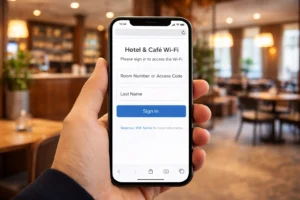
Captive Portals in UAE (Hotel & Public WiFi)
UAE and GCC hotels require you to register your device through a portal page before you get internet access.
After connecting to the hotel WiFi, open your browser and go to a plain HTTP site (not HTTPS) to trigger the login page.
Try typing neverssl.com — it forces the captive portal to appear on most networks.
VPN Users in the Region
If you use a VPN, it may appear as though you have no internet when actually the VPN server is blocked or throttled.
Turn off the VPN first and test the raw WiFi connection before troubleshooting further.
9. Is Your Phone Compatible With Your Router? (WiFi 5, 6, and 7)
This is something almost no other guide talks about — and in 2026, it’s becoming more relevant as WiFi 6 and WiFi 7 routers become common.
| WiFi Standard | Also Known As | Phone Compatibility | Can Cause Issues? |
|---|---|---|---|
| WiFi 5 | 802.11ac | All phones made after 2015 | Rarely |
| WiFi 6 | 802.11ax | Most phones made after 2019 | Sometimes |
| WiFi 6E | 802.11ax (6GHz) | Flagship phones 2021+ | Sometimes |
| WiFi 7 | 802.11be | iPhone 16, Galaxy S25, Pixel 9+ | Yes, with older phones |
The key fact: WiFi 7 routers are backward compatible — your old phone will still connect.
Some routers use WPA3-only security, which older phones may not support.
If your phone can’t connect to a new router at all, log into the router settings and change the security mode from WPA3-only to WPA2/WPA3 mixed mode.
Also Searching For One of These?
This guide answers all of these related problems in the sections above:
- Phone won’t connect to WiFi → Steps 1–5 cover this fully
- Phone connected but no internet → Section 3 explains this specifically
- WiFi keeps disconnecting → Section 4 has all three causes and fixes
- Android not connecting to WiFi → Section 5 covers Android-specific fixes
- iPhone WiFi not working → Steps 2, 6, and 7 can resolve many common iPhone WiFi issues
- WiFi authentication error → Step 3 and the error table in Section 7
- Phone shows connected but pages won’t load → Section 3 (DNS and IP lease fixes)
✅ Final Verdict
Frequently Asked Questions
This means your phone reached the router, but the router has no internet signal coming in.
Test by connecting another device to the same WiFi. If nothing gets internet, restart the router and call your ISP. If only your phone is affected, try renewing the IP lease or resetting network settings.
The most common cause on Android is Smart Network Switch — your phone switches to mobile data when WiFi seems slow. Turn it off in WiFi Advanced Settings.
On iPhone, repeated WiFi drops are more often caused by weak signal, router issues, VPN interference, or network settings problems. Weak signal from being too far from the router is the second most common cause.
A corrupted saved WiFi profile is the most likely cause. Forget the network and reconnect.
If that does not work, reset network settings: Settings → General Management → Reset → Reset Network Settings. Also check if your router has MAC filtering turned on — it may be blocking your device.
No. Resetting network settings only removes saved WiFi passwords, Bluetooth pairings, and VPN configurations. Your photos, contacts, apps, messages, and personal files are completely safe. You will need to re-enter WiFi passwords after the reset.
Hotels use captive portals — you need to open a browser and accept terms before you get internet. Open your browser right after connecting and type neverssl.com to trigger the login page. Office networks often need a separate username, password, or IT-issued configuration profile. Contact your IT team for the correct credentials.
Authentication error means the router rejected the password your phone sent. Either the password is wrong (check for capital letters and zeros vs the letter O), or the saved WiFi profile is corrupted. Forget the network, then reconnect and type the password carefully. If your router uses WPA3-only security, older Android phones may need you to switch the router to WPA2/WPA3 mixed mode.
Hardware failure is rare but possible. The clearest sign is a permanently greyed-out WiFi toggle, or your phone seeing no networks at all even standing right next to a router. If every software fix in this guide fails and your phone behaves this way, the WiFi chip or antenna may be damaged. Check your warranty — most manufacturers cover this within the first year. A professional repair is the next step.
Conclusion
A phone that won’t connect to WiFi is one of those problems that feels bigger than it is.
In most cases, it’s a simple software glitch or a misconfiguration that takes two minutes to fix.
Start with the easiest fixes — restart everything, forget and rejoin the network, check the password.
If those don’t work, move to the network settings reset and DNS change.
Only in rare cases do you need anything more advanced than that.
And if you’re still stuck after all 10 steps, the problem may be with your router or internet provider.
At that point, it may be worth contacting your ISP or checking whether your phone has a hardware issue under warranty.