I can’t tell you how many times I’ve picked up my phone to take a call, play some music, or watch a video, and suddenly there’s no sound.
Nothing at all.
You tap the volume buttons. Still nothing.
It’s frustrating, especially when your first thought is: “Is my speaker broken?”
In most cases, it’s something simple — a setting you didn’t notice, a connection still active, or a small software glitch.
Whether it’s your iPhone stuck in headphone mode, an Android update messing with audio routing, or even heat affecting performance (common in places like Dubai), there’s usually a quick fix.
I will walk you through the exact steps — starting with the ones that solve it fastest.
No need to rush to a repair shop.
Key Takeaways
- Most of the time, a phone speaker stops working because of simple things — like silent mode, a Bluetooth connection, or even dust in the speaker.
- Sound issues are one of the most common problems smartphone users face — especially as devices age or after software updates.
- Some users have reported audio routing issues on Android 14 — especially after using Bluetooth or casting.
- Stuck in headphone mode is one of the most common hidden causes — the phone thinks headphones are still plugged in even when they are not.
- Apple states iPhone is designed to operate between 0°C and 35°C — ambient temperatures above this can cause audio issues in hot climates like the UAE.
- Most speaker problems come down to simple settings or small software glitches — nothing serious.
- You usually won’t need a factory reset, it’s better to try the simpler fixes first
Quick summary (if you don’t want to read everything)
If your phone suddenly has no sound, try this first:
- It’s usually something like Bluetooth still being connected, your phone stuck in headphone mode, or even dust blocking the speaker.
- In hot climates, overheating can also temporarily shut down audio.
- The good news? Most of these take less than a few minutes to fix.
In many cases, one of these steps fixes the problem in under a minute.
It might sound basic, but one of these usually fixes the problem right away.
Who This Is For
This guide will help if:
- Your phone suddenly has no sound
- You’re using an iPhone or Android
- You live in a hot climate like the UAE or similar regions
- Your sound was working yesterday but stopped today
This is not for hardware replacements — I’m focusing on quick fixes you can do right now.
Table of Contents
- What Is a Phone Speaker and Why Does It Stop Working?
- Why Your Phone Speaker Stops Working — 9 Common Causes
- Quick Diagnosis — What Is Actually Wrong?
- Fix 1 — Check Silent Mode and Volume
- Fix 2 — Disconnect Bluetooth Devices
- Fix 3 — Fix Headphone Mode (The Hidden Cause Most Miss)
- Fix 4 — Restart Your Phone
- Fix 5 — Clean the Speaker Grille
- Fix 6 — Check Do Not Disturb and Focus Mode
- Fix 7 — Update Your Software
- Fix 8 — Test and Reset Audio Settings
- Fix 9 — Run a Speaker Diagnostic Test
- Deep Dive — iPhone-Specific Fixes
- Deep Dive — Android-Specific Fixes
- Hot Climate Special — UAE and Dubai Users
- When to Worry — Is It Hardware?
- How to Prevent Speaker Problems in the Future
- Quick Diagnosis Tables
- FAQ
- Conclusion
1. What Is a Phone Speaker and Why Does It Stop Working?
A phone speaker is the part of your phone that turns signals into the sound you actually hear.
Modern smartphones have two speakers — the main loudspeaker at the bottom for music, videos, and speakerphone calls, and the earpiece speaker at the top for regular phone calls.
When either stops working, you lose the ability to hear calls, play media, or receive notifications.
The cause is almost always one of nine things — and almost all of them are fixable in minutes without visiting a repair shop.
2. Why Your Phone Speaker Stops Working — 9 Common Causes
Phone speakers stop working for software reasons far more often than hardware reasons.
Here are the nine common causes — starting with the ones most people overlook.
1. Silent Mode or Low Volume
The most common cause.
The phone is in silent mode or the volume has been turned all the way down.
It sounds simple, but it’s surprisingly easy to miss — and often the quickest fix.
2. Bluetooth Device Still Connected
Your phone is sending audio to a Bluetooth device — headphones, a car stereo, or a speaker — instead of its own speaker.
This happens in the background without any visible notification.
Turning off Bluetooth usually brings the sound back instantly.
3. Headphone Mode Stuck
This one confuses a lot of people — it’s easy to miss.
Your phone thinks headphones are still plugged in — even when they are not.
This happens because of dust or lint in the headphone jack, moisture in the port, or a software glitch.
The speaker stays silent because the phone believes audio is being routed elsewhere.
It can make your phone seem completely silent — even though everything is still working.
4. Clogged Speaker Grille
Dust, lint, and debris build up in the small holes of the speaker grille over time.
This muffles or completely blocks sound output.
This is especially common on phones kept in pockets or bags without a case.
5. Do Not Disturb or Focus Mode Active
On iPhone, both Do Not Disturb and Focus Mode can silence calls and notifications, and sometimes affect how sound behaves across apps.
On iOS 15 and later, Focus Mode replaced and expanded Do Not Disturb.
Many users activate these accidentally from the Control Center and forget they are on.
6. Software Bug or Outdated OS
Software updates can sometimes introduce temporary audio bugs or glitches, especially around Bluetooth or audio routing.
If your speaker stopped working after an update, installing the latest version or restarting your phone often fixes it.
In most cases, a quick update or restart is enough to fix it.
7. Third-Party App Conflict
Equalizer apps, sound booster apps, and some accessibility apps can interfere with the phone’s audio routing.
If the speaker stopped working after installing a new app, that app may be the cause.
8. Water Damage
Even brief exposure to moisture can trigger headphone mode or corrode internal audio components.
The speaker may work intermittently or not at all after water exposure.
The damage is not always immediate — it can develop over days as corrosion spreads.
9. Hardware Failure
In rare cases, the speaker component itself has failed — from a physical drop, long-term wear, or manufacturing defect.
This is the last thing to check, not the first.
3. Quick Diagnosis — What Is Actually Wrong?
Before jumping into fixes, take a few seconds to figure out what’s actually going on.
This quick check can save you a lot of time.
First: does the speaker work in some situations but not others? For example — do you hear sound through headphones but not the speaker? Or do you hear notification sounds but not music?
Second: when exactly did the problem start? Right after installing an app? After getting the phone wet? After an OS update?
Most of the time, your answers here point straight to the cause.
4. Fix 1 — Check Silent Mode and Volume
This is always the first step. It resolves the problem faster than any other fix for a significant number of users.
On iPhone
Find the Ring/Silent switch on the left side of your iPhone.
If you see an orange stripe, the phone is in silent mode. Flip the switch toward the screen to turn sound on.
Then press the volume up button while a sound is playing.
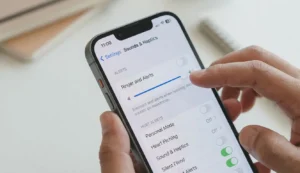
Head over to Settings → Sounds and Haptics and make sure the Ringer and Alerts slider is not all the way to the left.
On Android
Press the volume up button on the side of the phone.
Swipe down from the top to open Quick Settings.
Check that the sound icon is not showing a muted or vibrate symbol.
Also head over to Settings → Sound and check that Media Volume, Ring Volume, and Notification Volume are all above zero — not just one of them.
5. Fix 2 — Disconnect Bluetooth Devices
If your phone is connected to Bluetooth headphones, a car stereo, or a wireless speaker, all audio gets routed to that device.
Your phone’s built-in speaker stays silent.
On iPhone
Settings → Bluetooth → toggle off. Or swipe down from the top right to open Control Center and tap the Bluetooth icon.
On Android
Settings → Connections → Bluetooth → toggle off. If sound comes back — go back into Bluetooth settings, find the device, and tap Forget to stop it automatically reconnecting.
Struggling with your connection? If your Bluetooth is acting glitchy or won’t turn off, check out full guide on Why Is My Phone Bluetooth Not Working?
6. Fix 3 — Fix Headphone Mode (The Hidden Cause Most Miss)
A phone stuck in headphone mode is one of the most common, and least discussed — causes of a silent speaker.
Your phone thinks headphones are still plugged in, so it sends all the sound there instead of the speaker.
Signs: the speaker is completely silent even at full volume, but you can hear audio through Bluetooth or when headphones are actually plugged in.
If your phone has a headphone jack, plug in a pair of wired headphones.
Wait three seconds.
Then unplug them slowly.
This triggers the phone to re-detect the audio output and often resets the mode.
Step 2 — Clean the Headphone Jack or Charging Port
Use a dry soft-bristled toothbrush to gently brush inside the port.
Use short strokes.
Do not use pins, needles, or anything metal — they can damage the sensor.
Compressed air at a 45-degree angle also helps.
Step 3 — Use Bluetooth to Reset Audio Routing
Connect your phone to any Bluetooth speaker.
Play any audio through the Bluetooth device.
Then while audio is playing, turn off Bluetooth.
The phone is forced to re-detect its audio output and usually exits headphone mode.
Step 4 — Check Call Audio Routing on iPhone
Settings → Accessibility → Touch → Call Audio Routing → set to Automatic.
If it is set to Speaker or Headset, change it back to Automatic.
Step 5 — Check for Moisture
If the phone has been near water recently, moisture in the port may be triggering headphone mode.
Leave the phone in a dry room for an hour with the port facing down.
Use cool air only — never a hairdryer on high heat.
7. Fix 4 — Restart Your Phone
Restarting your phone can clear small glitches that quietly mess with your sound.
On iPhone: Hold the side button and volume down button together.
Slide to power off.
Wait 30 seconds.
Turn it back on.
On Android:
Hold the power button.
Tap Restart.
Wait for the phone to fully boot.
Then test the speaker.
8. Fix 5 — Clean the Speaker Grille
Dust and lint in the speaker grille muffle or block sound.
This is one of the most common causes of low or no volume.
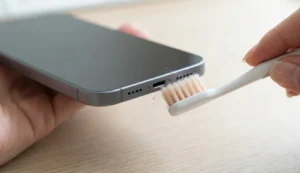
Use something soft like a dry toothbrush.
Brush across the speaker grille gently in short strokes.
Push in one direction to move debris out rather than deeper in.
Compressed air at a 45-degree angle also helps.
9. Fix 6 — Check Do Not Disturb and Focus Mode
Do Not Disturb and Focus Mode can silence everything — not just calls and notifications, but media sounds and ringtones too.
On iPhone — iOS 15 and Later
Swipe down from the top right corner to open Control Center.
Look for the Focus icon — a crescent moon or a colored circle.
If any Focus mode is active, tap it to turn it off.
Also head over to Settings → Focus and check that no mode is scheduled to turn on automatically.
On Android
Swipe down from the top to open Quick Settings.
Look for the Do Not Disturb icon.
If it is highlighted, tap it to turn it off.
Head over to Settings → Sound → Do Not Disturb and check that it is not set to turn on automatically by a schedule.
This is a common issue if it turns on at night and stays active the next day without you noticing.
10. Fix 7 — Update Your Software
If your speaker stopped working right after an update, it’s often a temporary software glitch rather than a hardware issue.
Updates often fix these kinds of issues.
On iPhone: Settings → General → Software Update.
Download and install any available update. Restart after updating.
On Android:
Settings → System → Software Update.
If you are on Android 14 and the speaker stopped working after connecting to Bluetooth or casting — this has been reported by some users and can affect how audio is routed.
Update to the latest Android version.
If no update is available, disconnect all Bluetooth and casting devices and restart.
Using an iPhone? Keeping your iOS current is just as important for squashing audio bugs.
11. Fix 8 — Test and Reset Audio Settings
iPhone — Check Sounds and Haptics
Head over to Settings → Sounds and Haptics. Drag the Ringer and Alerts slider to the right. If you hear a sound, the hardware is working and the problem is in your settings or a specific app.
Android — Check All Volume Sliders
Head over to Settings → Sound. Android has separate volumes for Media, Ring, Notification, and Alarm.
Check all four. It is possible that only one is muted.
Reset All Settings — iPhone
Settings → General → Transfer or Reset iPhone → Reset → Reset All Settings.
This resets every audio and notification setting without deleting photos, apps, or personal data.
Reset All Settings — Android
Settings → General Management → Reset → Reset All Settings. Same outcome — system settings return to default without data loss.
12. Fix 9 — Run a Speaker Diagnostic Test
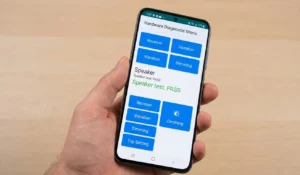
Both iPhone and Android have built-in tools to test whether the speaker hardware is actually working.
Most people don’t even realize these tools exist.
On iPhone
Download the Apple Support app from the App Store.
Open it → select your device → tap Diagnostics → run the speaker test.
If the test reports a speaker fault, the hardware needs repair.
Alternatively, call a friend and put the call on speakerphone.
If you hear audio through speakerphone during a call, the speaker hardware is working and the issue is in audio routing settings.
On Android
Dial *#0# on your dialpad.
On supported Samsung devices, this opens the hardware diagnostics menu.
Tap Speaker to run the test.
For Google Pixel: Settings → About Phone → Diagnostics → Speaker.
If the diagnostic test reports a failure, the speaker hardware needs professional repair. If it passes, the problem is software.
13. iPhone-Specific Fixes
Check Call Audio Routing
Settings → Accessibility → Touch → Call Audio Routing → set to Automatic.
This controls where audio goes during calls.
If it was changed to Speaker or Headset, all call audio routes there exclusively and the earpiece goes silent.
Disable AirPlay
If AirPlay is active, audio routes to a connected AirPlay device instead of the iPhone speaker.
Open Control Center → tap the AirPlay icon in the music control area → select iPhone to route audio back to the phone.
Check Accessibility Audio Balance
Settings → Accessibility → Audio/Visual.
Check that the Balance slider is not set all the way to one side — this silences one speaker entirely. Centre the slider.
Try Turning Off Apple Intelligence (Temporarily)
If you’re on iOS 18 or later, the new Apple Intelligence features are pretty cool, but they’ve been known to cause some weird audio glitches while they’re still being polished.
To see if this is what’s silencing your phone, try this:
-
Head over to Settings → Apple Intelligence & Siri and flip the switch to Off.
-
Give your iPhone a quick restart.
-
Check your sound.
If your speaker starts working again, you’ve found the culprit! You can try turning it back on later once the system settles down.
If you’ve tried everything and it’s still acting up, it’s worth checking the official checklist over at Apple Support — If you hear no sound from iPhone speaker.
14. Android-Specific Fixes
Clear Cache for Media Storage and Phone App
Settings → Apps → show System Apps → find Media Storage → Storage → Clear Cache.
Also clear the cache for the Phone app. These two system apps control audio routing. Corrupted cache in either can silence the speaker.
Check Audio Routing in Accessibility
Settings → Accessibility → Hearing → Audio routing. Make sure it is not set to a specific device or speaker. Set it back to Default or Automatic.
Disable Sound-Related Third-Party Apps
Head over to Settings → Apps.
Look for recently installed audio apps — equalizers, volume boosters, Dolby managers.
Disable them one by one and test the speaker after each.
Android 14 Audio Routing Bug Fix
On Android 14, a known bug with audio routing after connecting to Bluetooth or casting devices can cause the speaker to stop working.
Fix: turn off Bluetooth completely, turn off casting, restart the phone.
15. Hot Climate Special — UAE and Dubai Users
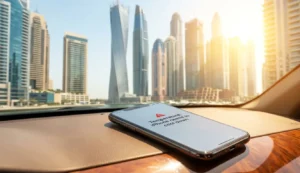
This section is for users in the UAE, Dubai, Saudi Arabia, Qatar, India, Pakistan, and any region where summer temperatures regularly exceed 35°C.
Most speaker troubleshooting guides are written by reviewers in the UK, US, or Europe.
If you’re in a place like Dubai, your phone overheats way faster than you think.
How Heat Affects Your Phone Speaker
Apple states that iPhone is designed to operate between 0°C and 35°C.
Dubai’s average summer temperature is 41–45°C.
Even the outside temperature alone can push your phone past its safe limits — sometimes before you’ve even started using it heavily.
If you’ve ever left your phone in a car in Dubai for even 10 minutes, you’ve probably seen this happen.
When a phone overheats, it enters a protective mode.
This can include slowing down performance, dimming the screen, and in some cases, cutting audio output to reduce the power load on the system.
Signs That Heat Is Causing Your Speaker Problem
- Speaker went silent after being outside or in a hot car
- Phone also feels hot or warm to the touch
- Screen may have dimmed at the same time
- Speaker works again after the phone cools down
How to Fix a Heat-Related Speaker Problem
- Move the phone to a cool, shaded area immediately
- Do not put it in the freezer — rapid temperature change causes condensation inside the phone
- Remove the phone case — cases trap heat. I’ve personally found that taking the phone out of its leather case for just 5 minutes is the fastest way to get the temperature down and the sound back.
- Leave the phone idle with the screen off for 10–15 minutes
- Do not charge it while it is still hot — charging generates additional heat
- Once cool, test the speaker — it will almost always work again
UAE-Specific Situations
Dashboard navigation in a hot car: A phone mounted on a dashboard in direct sun will overheat fast.
Keep the AC vent pointed at the phone mount. Use a windshield sun shade.
Photography outdoors: Running the camera, screen, and GPS simultaneously in 40°C+ heat can push the phone past its thermal limit quickly. Keep the phone in a cool bag between shots.
Gaming indoors without AC: A room above 30°C is enough to trigger thermal protection during heavy gaming. A 22°C air-conditioned room is ideal.
16. When to Worry — Is It Hardware?
Most speaker problems come from software, not hardware.
But these signs point to hardware failure that needs professional repair.
- The speaker diagnostic test (Section 12) reports a fault
- Speaker is completely silent even after every fix in this guide
- You hear crackling, buzzing, or distorted audio instead of no audio
- The phone was recently dropped or submerged in water
- The phone gets extremely hot even during simple tasks
- Multiple functions stopped working at the same time
If any of these apply, contact Apple Support or your phone manufacturer’s repair center.
Attempting to open the phone yourself will void the warranty and may cause further damage.
17. How to Prevent Speaker Problems in the Future
- Use a phone case that doesn’t block the speaker
- Clean the speaker grille once a month with a dry toothbrush
- Avoid charging in very hot or very cold conditions
- Keep your OS updated — most audio bugs are patched quickly
- Avoid third-party sound booster or equalizer apps
- Keep water and moisture away from all ports
- Restart your phone weekly — prevents audio processes from getting stuck
18. Quick Diagnosis Tables
What Your Symptom Tells You
| What You Are Experiencing | Most Likely Cause | Fix to Try First |
|---|---|---|
| No sound at all — not even notifications | Silent mode or volume muted | Fix 1 — Check silent switch and volume |
| Sound from headphones but not speaker | Stuck in headphone mode | Fix 3 — Headphone mode reset |
| Sound plays through Bluetooth only | Bluetooth still connected | Fix 2 — Turn off Bluetooth |
| Speaker muffled or very quiet | Clogged speaker grille | Fix 5 — Clean speaker grille |
| Speaker silent after OS update | Software audio bug | Fix 7 — Update software |
| Speaker silent after getting phone wet | Moisture in port or water damage | Fix 3 Step 5 — Dry port, let cool |
| Speaker works sometimes but not always | Loose connection or software conflict | Fix 4 Restart → Fix 8 Reset settings |
| Speaker silent in hot weather or outdoors | Thermal protection / overheating | Section 15 — Cool phone down first |
| Crackling or distorted sound | Speaker hardware damage | Section 16 — Contact repair center |
iPhone vs Android Fix Comparison
| Fix | iPhone Steps | Android Steps |
|---|---|---|
| Check silent mode | Flip the Ring/Silent switch on left side | Press volume up — check Quick Settings sound icon |
| Disconnect Bluetooth | Settings → Bluetooth → toggle off | Settings → Connections → Bluetooth → toggle off |
| Fix headphone mode | Plug/unplug headphones, clean jack, check Accessibility → Call Audio Routing | Plug/unplug headphones, clean port, check Accessibility → Audio routing |
| Restart phone | Hold side + volume down → slide to power off → wait 30s → turn on | Hold power → tap Restart → wait for full boot |
| Check Do Not Disturb | Control Center → turn off Focus mode | Quick Settings → turn off Do Not Disturb |
| Update software | Settings → General → Software Update | Settings → System → Software Update |
| Test audio settings | Settings → Sounds and Haptics → drag Ringer slider | Settings → Sound → check all four volume sliders |
| Run speaker test | Apple Support app → Diagnostics → Speaker test | Dial *#0# → tap Speaker (Samsung) or Settings → About → Diagnostics (Pixel) |
| Reset all settings | Settings → General → Reset → Reset All Settings | Settings → General Management → Reset → Reset All Settings |
19. Frequently Asked Questions
20. Conclusion
A silent phone speaker feels like a big problem — but in most cases, it’s something simple.
Start with the basics before assuming something is seriously wrong.
Check silent mode and volume. Then check Bluetooth.
Then check headphone mode.
In most cases the problem is resolved before you reach Fix 4.
Start with the basics:
- Check silent mode and volume
- Disconnect Bluetooth
- Fix headphone mode
- Restart your phone
Most people fix the issue within the first few steps.
If your apps are also crashing — read our guide: Why Do My Phone Apps Keep Crashing?
If your whole phone is slow after a recent update — read: Why Is My Phone Slow After an Update?