Your phone Bluetooth is not working because of a software glitch, a corrupted pairing, a permission that was turned off, or a setting like Battery Saver blocking the connection.
In most cases, simple steps like turning Bluetooth off and on, restarting your phone, or reconnecting the device fix the problem in minutes.
I have seen this happen many times while troubleshooting phones, and I know how frustrating it feels.
One day your headphones connect fine, and the next day your phone acts like they are not there.
The good news is that Bluetooth problems are usually not serious.
Most of them are caused by small settings or software issues, and you can fix them yourself quickly.
These troubleshooting steps are based on common fixes recommended by phone manufacturers and real-world repair experience.
Quick Answer — Why Is My Phone Bluetooth Not Working?
- The other device is not in pairing mode
- The saved pairing data has become corrupted
- Battery Saver can make Bluetooth connections less stable in the background
- A software bug — possibly from a recent update — is blocking Bluetooth
- App Bluetooth permission is turned off — on Android 12 and above, some apps need Nearby devices or Bluetooth permission to scan and connect
- WiFi interference on the 2.4GHz band is disrupting the signal
1. How Bluetooth Works on a Phone
Bluetooth is a short-range radio signal that lets two devices talk to each other without a wire.
When you pair your phone with headphones or a car, the two devices go through a three-step process:
- Discovery — one device broadcasts a signal and the other finds it
- Pairing — they exchange a security key and save each other’s details
- Profile matching — they agree on what type of connection to use (music, calls, files)
A problem at any of these three stages causes a Bluetooth failure.
Most consumer headphones and speakers work reliably within about 10 metres (33 feet) indoors — this is because most accessories use low-power Class 2 or Class 3 radio chips to preserve battery life.
Walls, furniture, and other electronics reduce this range further.
Most modern phones use Bluetooth 5.0 or newer (5.1–5.3 on newer models).
Older Bluetooth versions (4.0, 4.2) had shorter range and slower speeds.
If you are connecting an old accessory to a new phone, version differences can sometimes cause pairing issues — but this is rare.
2. 9 Common Reasons Bluetooth Stops Working
1. Bluetooth Is Off or the Device Is Not in Pairing Mode
The simplest cause.
Either Bluetooth is switched off on your phone, or the device you want to connect to is not in pairing mode.
Most Bluetooth accessories need you to hold a button until a light flashes to enter pairing mode — they do not automatically show up just by being switched on.
2. Corrupted Pairing Data
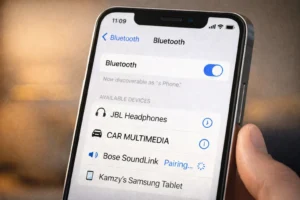
Your phone saves connection data for every device it has paired with.
Over time, this saved data can become corrupted — especially after a software update.
The phone tries to use the old connection data, it fails, and nothing works.
Forgetting the device and pairing again from scratch clears this instantly.
3. Too Many Saved Devices
If your phone or accessory has too many old paired devices saved, new connections can become unreliable.
The exact limit varies by phone, accessory, and software version — but deleting devices you no longer use almost always helps.
4. Outdated Software
Manufacturers regularly release updates that fix known Bluetooth bugs.
If you have not updated your phone in a while, a patch for your exact problem may already be waiting.
If your Bluetooth problems started right after a software update, check for a newer patch and review your phone maker’s official support page for any known issues.
Manufacturers often release follow-up patches to fix bugs introduced by major updates.
5. Corrupted Bluetooth Cache (Android)
Android stores temporary files for every system service, including Bluetooth.
These cache files can become corrupt after an update or after a crash.
When the Bluetooth cache is bad, the service behaves unpredictably — devices won’t connect, the toggle acts strangely, or pairing keeps failing.
6. WiFi Interference on the 2.4GHz Band
Bluetooth and WiFi both operate on the 2.4GHz radio frequency.
When both are active at the same time, they can interfere with each other — especially in busy places with many WiFi networks nearby.
This causes audio stuttering, random disconnections, and slow pairing.
Switching your WiFi to the 5GHz band (if available) can reduce interference and often improves Bluetooth stability.
7. App Bluetooth Permissions Switched Off
If Bluetooth works in general but a specific app cannot connect to your device, it may be missing Bluetooth permission.
Android 12 and above introduced dedicated Bluetooth permissions — separate from location — that each app needs to connect to nearby devices.
Go to Settings → Apps → find the app → Permissions → allow Nearby devices or Bluetooth.
8. Battery Saver or Low Power Mode
When Battery Saver is on, your phone cuts background processes to save power.
Bluetooth connections can become less stable when Battery Saver limits background activity.
This is why headphones seem to disconnect every time the screen goes off.
Turning off Battery Saver usually fixes this immediately.
You can also check battery optimization settings, as some devices may restrict Bluetooth activity in the background.
9. Hardware Damage
If none of the software fixes work and your phone cannot detect any Bluetooth devices at all — even standing right next to them — the Bluetooth antenna or chip may be physically damaged.
This is uncommon and usually happens after a drop or water exposure.
A greyed-out Bluetooth toggle that cannot be turned on is the clearest sign.
This requires professional repair.
3. Quick Diagnosis Table — Find Your Fix Fast
Match your exact symptom to the most likely cause and jump straight to the right fix.
| What You Are Seeing | Most Likely Cause | Go To |
|---|---|---|
| Bluetooth toggle is greyed out | Software crash or hardware fault | Fix 1 + Fix 2 |
| Device shows in list but won’t connect | Corrupted pairing data | Fix 3 |
| No devices show up when scanning | Other device not in pairing mode or Bluetooth toggle issue | Fix 1 + Fix 3 |
| Connected but no sound | Wrong Bluetooth audio profile | Section 5 |
| Bluetooth keeps disconnecting | Battery Saver blocking connection | Fix 7 |
| Car won’t connect automatically | Car device limit full | Section 7 |
| Headphones won’t pair | Not in pairing mode or multipoint conflict | Section 7 |
| Started after an Android update | Software bug or update issue | Fix 8 |
| Audio cuts in and out | WiFi 2.4GHz interference | Fix 7 + Cause 6 |
4. 9 Step-by-Step Fixes
Work through these in order. Most people fix the problem by Fix 3.
Turn Bluetooth Off and On
The fastest fix.
Toggling Bluetooth off and back on resets the connection state without restarting the phone.
- Swipe down from the top of your screen
- Tap the Bluetooth icon to turn it OFF
- Wait 10 seconds
- Tap it again to turn it ON
- Swipe down from top right to open Control Centre
- Tap the Bluetooth icon to turn it OFF
- Wait 10 seconds
- Tap it again to turn it ON
Restart Your Phone
A full restart clears temporary memory and resets all wireless services from scratch.
It takes 60 seconds and fixes more Bluetooth problems than most people expect.
- Hold the power button
- Tap Restart
- Wait for the phone to fully boot
- Hold the side button + volume down
- Slide to power off
- Wait 30 seconds, then turn on
Forget the Device and Reconnect
This deletes the corrupted saved pairing and forces your phone to start fresh.
It is the single most effective fix for a device that shows in the list but won’t connect.
- Settings → Connected devices
- Tap the gear icon next to the device
- Tap Forget
- Put the accessory back into pairing mode
- Scan and pair again
- Settings → Bluetooth
- Tap the (i) icon next to the device
- Tap Forget This Device
- Put the accessory into pairing mode
- Tap the device name to reconnect
Move Devices Closer Together
Bluetooth has a maximum range of about 10 metres (33 feet) indoors — but walls, metal objects, and other electronics reduce that significantly.
During the pairing process especially, keep your devices within 1 metre (3 feet) of each other.
Once paired, most Bluetooth accessories work up to about 7–8 metres in a typical home.
If audio cuts out when you move away, you are likely at the edge of the range.
Move closer or consider a Bluetooth 5.0+ accessory for better range.
Check Airplane Mode
Airplane Mode usually turns off wireless connections, but Bluetooth can still be turned back on while Airplane Mode is active on some phones.
If Bluetooth is not working, check whether Airplane Mode is on and then turn Bluetooth back on if needed.
- Swipe down from the top of your screen
- Check if the Airplane Mode icon is highlighted
- If it is ON, tap it to turn it OFF
- Open Control Centre (swipe from top right)
- Check if the Airplane icon is orange/highlighted
- If it is ON, tap it to turn it OFF
Check App Bluetooth Permissions
If Bluetooth works for some things but a specific app cannot find or use your Bluetooth device, that app may not have Bluetooth permission.
Android 12 and above introduced dedicated Bluetooth permissions — separate from location — so each app needs permission to connect to nearby devices.
- Settings → Apps
- Find the app that cannot use Bluetooth
- Tap Permissions
- Find Nearby devices or Bluetooth
- Set to Allow
- Settings → Privacy & Security
- Tap Bluetooth
- Find the app that is not working
- Toggle it ON to allow Bluetooth access
For the official Android Bluetooth steps, visit Google’s Bluetooth troubleshooting guide.
Turn Off Battery Saver / Low Power Mode
Battery Saver can limit background app activity and may make Bluetooth connections less reliable — especially when the screen turns off.
It is not Battery Saver itself that directly cuts Bluetooth, but the battery optimisation settings for apps that can restrict Bluetooth in the background.
You can also find out more about how battery settings affect phone behaviour in our guide on why phones switch off automatically.
- Settings → Battery → Battery Saver → turn OFF
- Also: check battery optimization settings, because the exact path varies by Android device.
- Settings → Battery
- Turn off Low Power Mode
Check for Software Updates
A pending software update may contain the exact bug fix you need.
If your Bluetooth stopped working after an update, check for a newer patch right away.
- Settings → Software Update
- Tap Download and Install
- Restart after completing
- Settings → General
- Tap Software Update
- Install any available update
For Apple’s official Bluetooth troubleshooting steps, visit Apple’s Bluetooth support page.
Clear Bluetooth Cache (Android) or Reset Network Settings (iPhone)
This is the deepest software reset for Bluetooth.
On Android, clearing the Bluetooth system cache removes all corrupted temporary files.
On iPhone, resetting network settings clears all saved wireless data — WiFi passwords, Bluetooth pairings, VPN settings.
Neither option deletes your photos or apps.
- Settings → Apps → Show system apps → Bluetooth → Storage → Clear Cache (steps may vary by device)
- Settings → General
- Transfer or Reset iPhone
- Reset → Reset Network Settings
- Re-enter WiFi passwords and re-pair devices
5. Bluetooth Connected But No Sound
This is one of the most frustrating Bluetooth problems.
Your phone says it is connected.
The Bluetooth icon shows. But nothing comes out of your headphones or speaker.
The cause is almost always a Bluetooth audio profile mismatch.
Bluetooth uses different profiles for different jobs:
- A2DP (Advanced Audio Distribution Profile) — this is the profile for stereo music and audio quality
- HFP (Hands-Free Profile) — this is for phone calls and voice assistants
When your phone connects using HFP instead of A2DP, you get call quality audio (or nothing at all) instead of music.
This happens most often with car Bluetooth and older headphones.
How to Fix No Sound on Android
- Go to Settings → Connected devices
- Tap the gear icon next to your device
- Make sure Media Audio is turned on
- If it is already on, toggle it off, wait 5 seconds, then toggle it back on
How to Fix No Sound on iPhone
- Disconnect and reconnect the Bluetooth device
- During playback, tap the audio output icon (looks like a triangle with circles)
- Select your Bluetooth device from the list
- If the device does not appear, forget it and re-pair
Make sure your media volume is turned up separately from your call volume.
On Android, pressing the volume button during playback controls media volume.
Some phones have separate sliders for each type of audio in Settings → Sound.
6. Android vs iPhone Bluetooth Fixes
| Fix | Android Path | iPhone Path | Difficulty |
|---|---|---|---|
| Toggle Bluetooth | Notification bar → Bluetooth icon | Control Centre → Bluetooth icon | Easy |
| Restart phone | Hold power → Restart | Hold side + vol down → Slide off | Easy |
| Forget device | Connected devices → gear → Forget | Settings → Bluetooth → (i) → Forget | Easy |
| Check Airplane Mode | Notification bar | Control Centre | Easy |
| Turn off Battery Saver | Settings → Battery → Battery Saver OFF | Settings → Battery → Low Power OFF | Easy |
| Grant Bluetooth / Nearby devices permission | Settings → Apps → [App name] → Permissions → Nearby devices / Bluetooth | Settings → Privacy & Security → Bluetooth → [App name] ON | Medium |
| Fix no sound (profile) | Connected devices → gear → Media Audio ON | Tap audio output icon → select device | Medium |
| Software update | Settings → Software Update | Settings → General → Software Update | Easy |
| Clear Bluetooth cache | Settings → Apps → Show system apps → Bluetooth → Storage → Clear Cache (path may vary by device) | Not available — use Reset Network Settings | Medium |
| Reset network settings | Settings → Reset options → Reset Wi-Fi, mobile & Bluetooth or Reset network settings (wording varies by device) | Settings → General → Transfer or Reset iPhone → Reset → Reset Network Settings | Medium |
7. Car Bluetooth and Headphones — Special Cases
Phone Won’t Connect to Car Bluetooth
Car Bluetooth behaves differently from headphones or speakers.
Here is what to check:
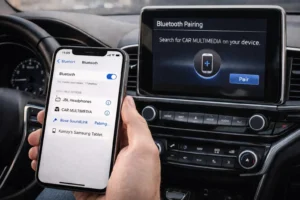
- Car device limit: Most car infotainment systems hold between 5 and 8 saved phones. When the list is full, new phones cannot connect and existing ones may behave erratically. Go into your car’s Bluetooth settings and delete all phones you no longer use.
- Pair from the car, not the phone: Some cars work better when you initiate pairing from the car’s screen rather than from your phone. Check your car manual for which method works best.
- Engine running, not just ignition: Some infotainment systems only activate Bluetooth fully when the engine is running, not just when accessories are on. Start the engine before trying to pair.
- Music works but calls don’t (or vice versa): This is the A2DP vs HFP profile issue. On Android go to Settings → Connected devices → tap gear next to your car → make sure both Media Audio and Phone Audio are turned on.
If you use Android Auto or Apple CarPlay, these apps take over the audio and calling connection from regular Bluetooth.
If your car connects via USB for CarPlay or Android Auto, your phone’s regular Bluetooth may appear disconnected even though everything is working correctly.
Bluetooth Headphones Not Connecting to Phone
Headphone pairing problems almost always come down to one of these four things:
- Not in pairing mode: Most headphones need you to hold the power or Bluetooth button for 3 to 5 seconds until a light flashes or you hear a tone. Just turning them on is not enough.
- Still connected to another device: If your headphones are already connected to your laptop or tablet, they won’t pair with your phone. Disconnect them from the other device first, or turn off Bluetooth on the other device.
- Multipoint pairing conflict: Many modern headphones support multipoint pairing — connecting to two devices at the same time. If one of those devices keeps pulling the connection away, the headphones will constantly disconnect from your phone. Turn off multipoint in the headphone app if available, or forget the conflicting device.
- Low headphone battery: When headphone battery is very low (often below 10–20%, depending on the device), many models drop the Bluetooth connection to preserve power
8. Climate and Region Tips
Hot Climates — GCC, South Asia, Sub-Saharan Africa, Southeast Asia
Extreme heat reduces the effective range of Bluetooth signals and causes random disconnections.
When the phone is hot, its processor also throttles back, which affects wireless performance.
Keep the phone cool, remove the case in hot weather, and avoid using Bluetooth-heavy apps like music streaming while charging in high temperatures.
Cold Climates — Northern Europe, Canada, Russia, High Altitudes
Battery performance drops in cold weather, and since Bluetooth relies on the battery to maintain a constant signal, cold conditions cause more frequent disconnections.
Keep the phone in an inner pocket close to your body when outdoors in freezing temperatures.
Dense Urban Areas
In busy cities and apartment buildings, the 2.4GHz frequency band is heavily congested with WiFi networks, Bluetooth devices, and other electronics all competing for the same signal space.
If Bluetooth seems unreliable in a specific location, this interference is likely the cause.
Switching your home WiFi router to the 5GHz band frees up the 2.4GHz lane for Bluetooth and often solves persistent disconnection problems.
Travelling Internationally
Unlike WiFi — which uses different channels and bands in different regions — Bluetooth is a universal standard.
The same Bluetooth version works identically in every country.
You will not face any regional compatibility issues when travelling with Bluetooth accessories.
10. Frequently Asked Questions
Q1: Why is my phone Bluetooth not finding any devices?
The other device is likely not in pairing mode — hold its button until a light flashes. On Android 12 and above, also check that the app you are using has Nearby devices or Bluetooth permission under Settings → Apps → [App name] → Permissions.
Q2: Why does my phone Bluetooth keep disconnecting?
Battery Saver mode can make Bluetooth connections less reliable, especially when the screen turns off.
Go to Settings → Battery and turn Battery Saver off. On Android, also check battery optimization settings, as some apps or system processes may be restricted.
Q3: Why is my Bluetooth connected but there is no sound?
Your phone is using the wrong Bluetooth profile.
On Android go to Settings → Connected devices → gear icon → turn on Media Audio.
On iPhone, tap the audio output icon during playback and select your Bluetooth device.
Q4: How do I reset Bluetooth on my phone?
On Android go to Settings → Apps → Show system apps → Bluetooth → Storage → Clear Cache (steps may vary by device).
On iPhone go to Settings → General → Transfer or Reset iPhone → Reset → Reset Network Settings.
Both clear all saved Bluetooth data without deleting your files.
Q5: Can a software update fix Bluetooth problems?
Yes — and it often does. Check Settings → Software Update on Android or Settings → General → Software Update on iPhone. If Bluetooth stopped working after an update, a newer patch very likely contains the fix.
✅ Final Verdict
Conclusion
Phone Bluetooth problems feel mysterious, but they almost always have a simple software cause. Toggle it off and on, restart your phone, or forget and re-pair the device — those three steps fix most cases.
If you are on Android 12 or newer and nothing is showing up in the scan list, check Nearby devices or Bluetooth permission first — go to Settings → Apps → [App name] → Permissions. On iPhone, check Settings → Privacy & Security → Bluetooth. And if your issue started after a recent update, check for a newer patch right away.