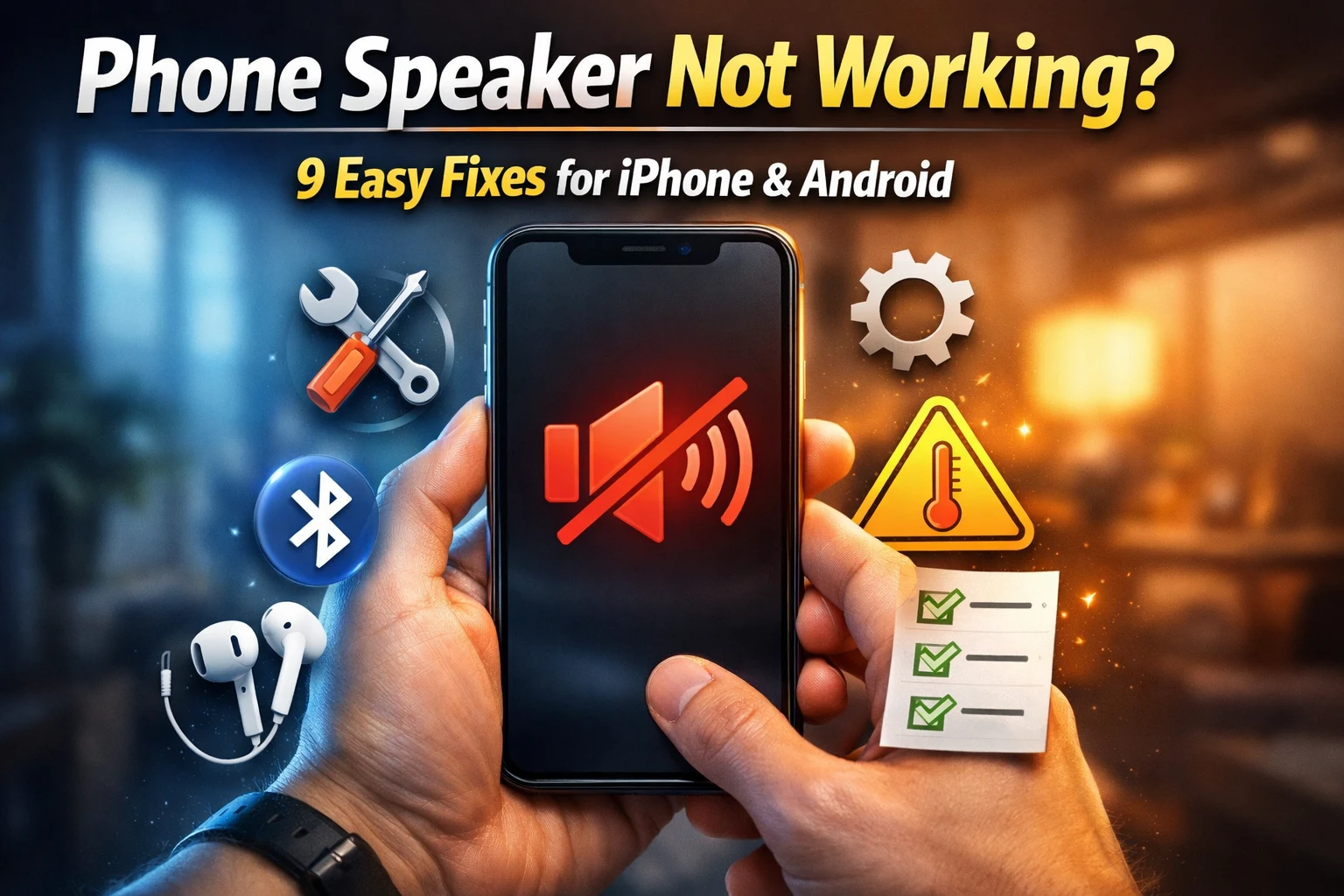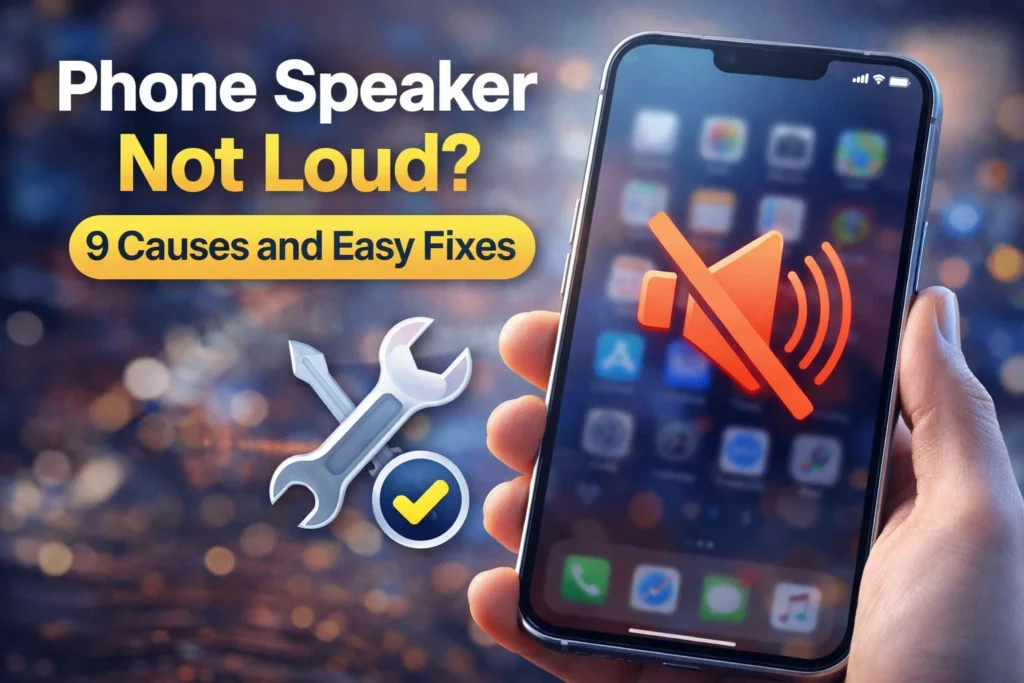
Your phone speaker is not loud because something is blocking the sound, lowering the volume, or routing audio somewhere else. Most of the time, it is not a serious problem.
The sound gets low when dust blocks the speaker, a phone case covers it, or your phone sends audio to Bluetooth by mistake.
I’ve seen this on many phones, and it’s usually a quick fix, not a broken speaker.
Many people think their speaker is damaged, but in many cases, it’s not.
Simple things like cleaning the speaker or checking your sound settings can fix it fast.
In this guide, you will learn the real reasons your phone sounds quiet and the easy steps to make it loud again.
Whether your phone speaker is too quiet, not loud enough, or the volume feels very low no matter what you do, this guide will help you fix it.
Quick Answer — Why Is My Phone Speaker Not Loud?
- Dust or lint blocking the speaker grille
- Volume limiter or sound settings turned down
- Bluetooth routing audio to another device
- Phone case covering or pressing against the speaker
- Water or moisture inside the speaker
- Software bug after an update
- Speaker hardware wear or damage
1. How Phone Speakers Work
Your phone speaker is a small device with a component inside called a speaker driver.
When your phone sends an electrical audio signal to the driver, it causes a thin cone to vibrate back and forth rapidly.
Those vibrations push the air around them and create the sound waves you hear.
The sound travels through a speaker grille — the small holes or mesh on the outside of your phone — before it reaches your ears.
If those holes get blocked by dust or lint, the sound has nowhere to go.
That is why a dirty grille makes your phone sound muffled or quiet even at maximum volume.
There is also a software layer.
Your phone controls volume separately for different audio types — media volume, call volume, ringtone, and alarms each have their own slider.
A setting, bug, or connected device can lower one of these without affecting the others, which is why your music might be loud but your calls are almost silent.
2. 9 Reasons Your Phone Speaker Is Quiet
1. Dust or Debris Blocking the Speaker Grille
This is one of the most common causes.
Every time your phone goes in a pocket, bag, or dusty environment, tiny particles work their way into the speaker grille.
Over time, enough builds up to physically block sound from coming through.
If your phone speaker sounds muffled or the phone volume feels very low even at maximum, a blocked grille is the first thing to check.
2. Phone Case Covering the Speaker
Many phone cases — especially thick ones, wallet cases, or cases with poor cutouts — partially cover the speaker grille.
Even a few millimeters of coverage noticeably reduces volume.
Remove your case and test the speaker right away before trying anything else.
3. Volume Limiter or Sound Limit Setting Enabled
Both Android and iPhone have sound settings that can affect how loud audio feels.
On iPhone, Headphone Safety mainly applies to headphones, not the built-in speaker.
On Android, the exact path varies by brand, but volume and sound options are usually under Settings → Sound.
4. Bluetooth Routing Audio to Another Device
If your phone is connected to a Bluetooth speaker, earbuds, or car audio — even in the background — it sends all sound there instead of the built-in speaker.
Sometimes this connection stays active without you knowing.
You can find out more about how Bluetooth audio routing works in our full guide on why phone Bluetooth is not working.
5. Do Not Disturb, Focus Mode, or Attention Aware
Do Not Disturb silences calls, alerts, and notifications.
On iPhone, a feature called Attention Aware goes further — it uses the front camera to detect when you are looking at the screen and automatically lowers alert and ringtone volume when it detects you are looking at the screen.
It does not affect media playback or speaker output.
6. Software Bug After an Update
A software update can reset audio settings or introduce a bug that lowers speaker output.
If your speaker was fine and suddenly went quiet right after an update, a software issue is the most likely cause.
Software bugs can also cause other unexpected phone behaviour — see our guide on why your phone switches off automatically.
Check for a newer update — manufacturers often release a follow-up patch within days to fix audio bugs.
7. Water or Moisture Inside the Speaker
Even a small amount of moisture inside the speaker grille can muffle or distort sound significantly.
This happens from rain, splashes, sweat, or leaving your phone in a humid bathroom.
The sound usually returns once the phone dries out properly — but only if you dry it correctly.
8. Phone Stuck in Headphone Mode
On older phones with a headphone jack, a sensor detects plugged-in headphones.
On newer phones, audio routing can still get stuck due to software or port issues.
When this happens, all audio is routed away from the speaker — so it makes little or no sound at all.
9. Speaker Hardware Damage or Wear
Physical damage from drops, long-term use at maximum volume, or water exposure can wear down the speaker’s internal components.
A damaged speaker usually produces distorted or crackling sound rather than just quiet sound.
If all software fixes fail and headphones sound perfectly clear, the hardware is likely the problem.
3. Quick Diagnosis Table
Find your exact symptom and jump straight to the right fix.
| What You Are Seeing | Most Likely Cause |
|---|---|
| Sound is muffled, not just quiet | Dust in grille or phone case blocking speaker |
| No sound at all from speaker | Bluetooth connected or stuck in headphone mode |
| All sounds are quiet | Volume limiter or Do Not Disturb is on |
| Call volume low, music is fine | Separate call volume slider needs adjusting |
| Quiet only when looking at screen | Attention Aware feature on iPhone |
| Went quiet after a software update | Software bug reset audio settings |
| Sound is distorted and muffled | Water inside the speaker |
| One side sounds quieter than the other | Audio balance shifted in Accessibility settings |
| Headphones icon visible but nothing plugged in | Stuck in headphone mode |
4. 9 Step-by-Step Fixes
Work through these steps in order and stop when the problem is solved.
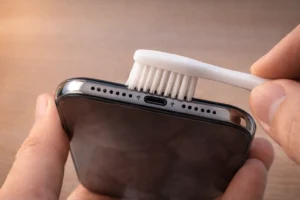
Clean the Speaker Grille
This is the first fix to try and the one that works most often.
Dust and lint build up in the speaker grille and block sound from coming through.
If your phone speaker feels too quiet or sounds muffled, cleaning the grille takes just a few minutes and often restores full volume immediately.
- Turn your phone off first
- Get a clean, dry soft-bristled toothbrush
- Hold the phone with the speaker facing downward so loose debris falls out with gravity
- Brush gently across the grille in short outward strokes — sweep outward, never push inward
- Use a small piece of painter’s tape or adhesive putty to lift stubborn lint from the holes
- Turn the phone back on and test
- Compressed air: Avoid high-pressure use — strong bursts can force debris deeper or damage components. Low-pressure use from a distance can be safe
- Needles, pins, or toothpicks: These can puncture the speaker mesh and cause permanent damage
- Cotton swabs: Fibres break off and get trapped inside the grille
- Liquids: Avoid applying liquid directly. If needed, a very small amount of isopropyl alcohol on a cloth can be used carefully
Check All Volume Sliders
Most people do not know that their phone has separate volume controls for media, calls, ringtones, and alarms.
Turning up the volume on the home screen only changes media volume — not call volume or ringtone volume.
- Press the volume button once
- Tap the small arrow to expand all sliders
- Check Media, Call, Ring, and Alarm separately
- Also check Settings → Sound for a volume limit setting
- During a live call, use the side buttons to raise call volume only
- During a call: use the side volume buttons — only works during active calls
- For ringtone: Settings → Sounds & Haptics → drag the Ringer slider up
- Check Sounds & Haptics for ringtone and alert settings, and check Headphone Safety only if the issue happens with headphones
- For media: use the side buttons while music or video is playing
For Apple’s official volume guide, see the Apple iPhone sounds and haptics support page.
Turn Off Bluetooth
If your phone is connected to a Bluetooth speaker, earbuds, or car audio — even in the background — it will route all audio to that device instead of the built-in speaker.
Turning Bluetooth off routes sound back to your speaker right away.
You can also check active audio output from your phone’s media output menu or control center.
- Swipe down from the top of your screen
- Tap the Bluetooth icon to turn it OFF
- Test the speaker immediately
- Swipe down from the top right to open Control Centre
- Tap the Bluetooth icon to turn it OFF
- Test the speaker immediately
Remove the Phone Case
Many cases — especially thick ones or those with poor speaker cutouts — cover part of the speaker grille.
Even a millimetre of overlap muffles the sound noticeably.
Remove your case completely and test the volume. If it is louder without the case, your case is the problem.
Try a case with a proper speaker opening, or switch to a thinner case.
Turn Off Do Not Disturb and Attention Aware
Do Not Disturb can silence everything — calls, alerts, and notifications.
On iPhone, Attention Aware is a separate feature that automatically lowers alert and ringtone volume when it detects you are looking at the screen.
It does not affect media playback or speaker output.
- Swipe down from the top of the screen
- Look for the Do Not Disturb icon — tap to turn OFF
- Or go to Settings → Notifications → Do Not Disturb → turn OFF
- Open Control Centre and make sure Focus / Do Not Disturb is OFF
- Settings → Face ID & Passcode
- Turn off Attention Aware Features
- This stops iPhone from lowering volume when it sees your face
Check for a Software Update
A software update can reset audio settings or introduce a bug affecting the speaker.
If the problem started after a recent update, check for a newer patch right away.
Manufacturers usually release a fix within days when audio bugs are widely reported.
- Settings → Software Update
- Tap Download and Install
- Restart after the update completes
- Settings → General → Software Update
- Install any available update
- Restart after completing
Dry the Phone If It Got Wet
If your phone got wet recently and the speaker is now muffled or distorted, moisture is likely still inside the speaker. Follow these steps exactly.
- Turn the phone off immediately — do not use it while wet
- Do not charge it — charging a wet phone risks a short circuit
- Hold the phone with the speaker facing downward and gently tap the back to help water drain
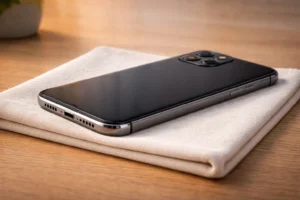
- Place it face-down on a dry clean cloth in a well-ventilated area
- Leave it for at least two to four hours before turning it back on
- Test the speaker — if still muffled, leave it for another few hours. If you notice other issues like connectivity problems after water exposure, check our guide on why your phone is not connecting to WiFi
- Do not use a hair dryer: Concentrated heat can damage internal components
- Do not put it in rice: Rice does not effectively absorb moisture from inside electronics and small grains can get into ports
- Do not charge it until you are certain it is dry
Fix Headphone Stuck Mode
If your phone thinks headphones are plugged in when they are not, all audio is routed to the headphone jack instead of the speaker.
The headphone icon may show in the status bar even with nothing connected.
- Plug a pair of headphones fully into the jack
- Play audio and confirm you can hear it through the headphones
- Slowly unplug the headphones
- Repeat this two to three times — it resets the audio detection sensor
- Clean the headphone jack gently with a dry soft toothbrush if debris is visible
- On newer phones without a headphone jack, restart the phone and toggle Airplane Mode on and off
Reset Audio Balance and Check Sound Settings
The audio balance slider in Accessibility settings controls the left and right audio balance.
If this was shifted accidentally, one speaker will sound quieter than the other — or the overall volume may seem lower than expected.
- Settings → Accessibility → Hearing
- Find Audio Balance or Left/Right Balance
- Centre the slider exactly in the middle
- Also check any equaliser settings under Settings → Sound
- Settings → Accessibility → Audio and Visual
- Find the Balance slider and centre it
- Also check Settings → Music → EQ → set to Off
5. Speaker Loud but Distorted
Distorted sound is a different problem from quiet sound — and it needs a different fix.
If your speaker is playing audio but it sounds crackly, buzzy, or broken-up, the cause is usually one of these:
- Water inside the speaker: Moisture causes the speaker diaphragm to vibrate unevenly, creating a crackling or muffled distortion. Dry the phone using the steps in Fix 7.
- Playing at maximum volume too often: Running a small phone speaker at full volume for long periods can stretch or damage the speaker diaphragm over time. Lower the volume to around 70% and the distortion often reduces or disappears.
- Debris vibrating inside the grille: A small piece of lint or a particle caught in the speaker can vibrate and cause buzzing. Clean the grille with the method in Fix 1.
- Damaged speaker diaphragm: If cleaning and drying do not help, and the distortion is consistent at any volume, the speaker diaphragm may be physically damaged. This needs a professional repair.
Lower the volume to about 50%.
If the distortion disappears at lower volumes, the issue is stress on the speaker at high volume — not permanent damage.
If distortion stays at any volume level, the speaker likely needs repair.
6. Android vs iPhone Speaker Fixes
| Fix | Android Path | iPhone Path | Difficulty |
|---|---|---|---|
| Check volume sliders | Press volume → expand arrow → check all sliders | Side buttons (call) · Settings → Sounds & Haptics (ring) | Easy |
| Turn off Bluetooth | Notification bar → Bluetooth OFF | Control Centre → Bluetooth OFF | Easy |
| Remove phone case | Remove and test volume | Remove and test volume | Easy |
| Turn off Do Not Disturb | Settings → Notifications → DND OFF | Control Centre → Focus OFF | Easy |
| Turn off Attention Aware | Not applicable on Android | Settings → Face ID & Passcode → Attention Aware OFF | Easy |
| Check volume limit | Settings → Sound → Volume limit | Sounds & Haptics (ringtone/alerts) · Headphone Safety (headphones only) | Easy |
| Software update | Settings → Software Update | Settings → General → Software Update | Easy |
| Fix headphone stuck mode | Plug and unplug headphones 2–3 times | Same steps — or restart and toggle Airplane Mode | Medium |
| Reset audio balance | Settings → Accessibility → Hearing → Balance | Settings → Accessibility → Audio and Visual → Balance | Medium |
| Reset all settings | Settings → System or General Management → Reset options or Reset (varies by device) | Settings → General → Transfer or Reset iPhone → Reset → Reset All Settings | Medium |
7. Water Damage Speaker Fix
Water and phone speakers do not mix well.
Even phones rated as water-resistant can have moisture work its way into the speaker grille — especially after a swim, heavy rain, or being left in a steamy bathroom.
When water gets inside the speaker, it sits against the speaker membrane and makes the sound muffled, distorted, or almost silent.
The key is to get the water out without causing more damage.
Water damage can also affect Bluetooth and connectivity — read our guide on why phone Bluetooth stops working if you notice those issues too.
Steps to Dry a Wet Speaker
- Turn the phone off — do not use it until it is dry
- Do not charge it — this is important
- Hold the phone with the speaker grille facing downward
- Gently tap the back of the phone to help water drain out
- Place it on a dry cloth in a ventilated room with the speaker facing down
- Wait at least two to four hours
- Test the speaker — repeat if still muffled
Water Eject Tone Trick
Some Android apps and iPhone Shortcuts use a low-frequency tone to vibrate water out of the speaker — similar to how the Apple Watch ejects water.
Search for “Water Eject” in the iPhone Shortcuts gallery, or use a free Android app like “Speaker Cleaner.”
These tones may help vibrate water out of the speaker, but results vary and they are not officially supported on most phones.
Most modern phones have an IP67 or IP68 water resistance rating.
This means they can handle splashes and brief submersion — but it does not mean the speaker is fully sealed.
Chlorinated pool water, salt water, and soapy water are more damaging than fresh water because they leave residue behind even after drying.
8. Dust and Climate Effects
Where you live and work has a big effect on how fast your speaker gets blocked or damaged. Here is what to watch for in different climates.
Hot and Dusty Climates — Middle East, South Asia, Sub-Saharan Africa, Dry Regions
In dusty environments, speaker grilles clog much faster than in clean indoor settings.
If you live or work in a dry, dusty area — or spend time on construction sites, in markets, or outdoors in arid regions — your speaker grille needs cleaning more often.
Once a month is a good habit in these climates.
A phone case with covered speaker ports helps prevent dust from getting in when the phone is in a pocket or bag.
Hot and Humid Climates — Southeast Asia, Coastal Areas, Tropical Regions
Humidity is the speaker’s silent enemy.
In tropical climates, warm moist air can condense inside the phone when you move between air-conditioned rooms and outdoor heat.
Over time, this moisture can affect speaker performance and cause muffled sound over time.
Store your phone in a dry environment when possible and use silica gel packets in your phone bag if humidity is a constant problem.
Cold Climates — Northern Europe, Canada, Russia, High-Altitude Regions
Bringing a cold phone into a warm room causes condensation to form on and inside the device — including the speaker.
If your speaker sounds muffled after coming in from the cold, leave the phone at room temperature for 20 to 30 minutes before using it.
Do not try to heat it up with a hair dryer. The condensation will evaporate on its own.
Beach and Sandy Environments
Fine sand is one of the hardest things to remove from a speaker grille.
Unlike lint, sand particles are dense and can scratch the speaker mesh if you try to brush them out too aggressively.
Use the adhesive putty method — gently press a small piece of adhesive putty over the grille and peel it away slowly to lift sand particles out without pushing them deeper.
10. Frequently Asked Questions
The speaker grille is most likely blocked with dust or lint. Also check Sounds & Haptics for ringtone and alert settings on iPhone.
If the problem is only with headphones, check Headphone Safety too.
Call volume and media volume are completely separate controls. During an active call, use the physical volume buttons on the side of your phone to raise call volume — adjusting volume from the home screen only changes media volume.
Yes. Dust and lint physically block the holes in the grille and stop sound from passing through clearly. Cleaning with a soft dry toothbrush often restores full volume right away — it is the most common and most overlooked fix.
A software update can reset audio settings or introduce a bug that affects speaker output. Check for a newer update under Settings → Software Update — manufacturers usually release a follow-up patch to fix audio issues quickly.
Plug in headphones — if audio is clear and loud through headphones but not through the speaker, the speaker hardware is likely damaged. A damaged speaker usually distorts and crackles, not just goes quiet. If cleaning and all software fixes fail, take it to a repair shop and check your warranty.
✅ Final Verdict
Conclusion
A quiet phone speaker is frustrating — but it is almost never a sign of serious damage. In most cases, the speaker grille needs a quick clean, a volume slider needs adjusting, or a setting is quietly capping the sound without you knowing.
Start with Fix 1 and Fix 2. Clean the grille and check every volume slider. You can also browse all our phone fix guides on Focalrated for help with other issues. Those two steps fix the problem for most people. If the speaker is still quiet after working through all 9 fixes, plug in headphones to test — clear headphone audio and quiet speaker audio together point to a hardware issue worth checking under warranty.
Leave your phone model and exactly what you have already tried in the comments. The answer is almost always just one more step away.