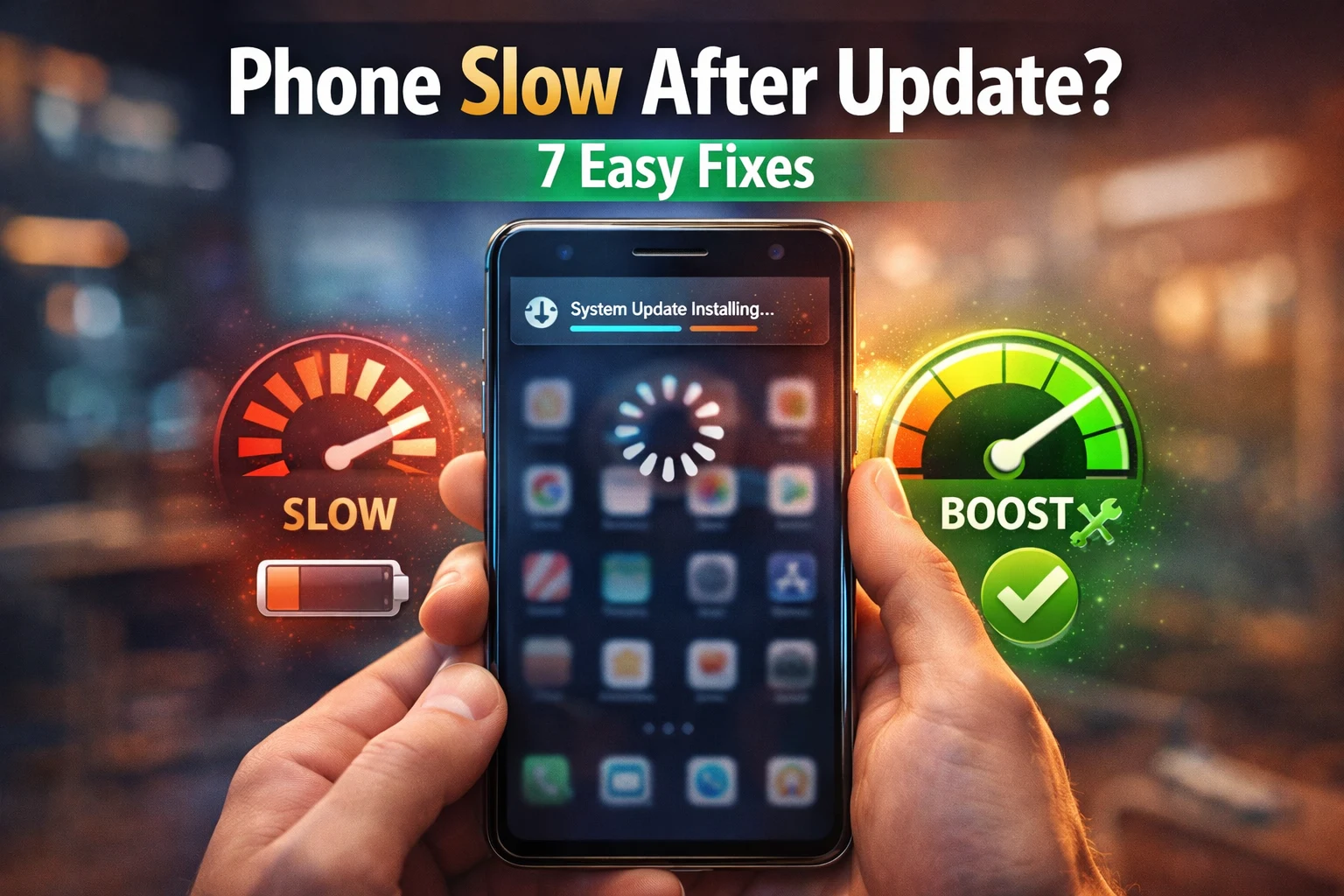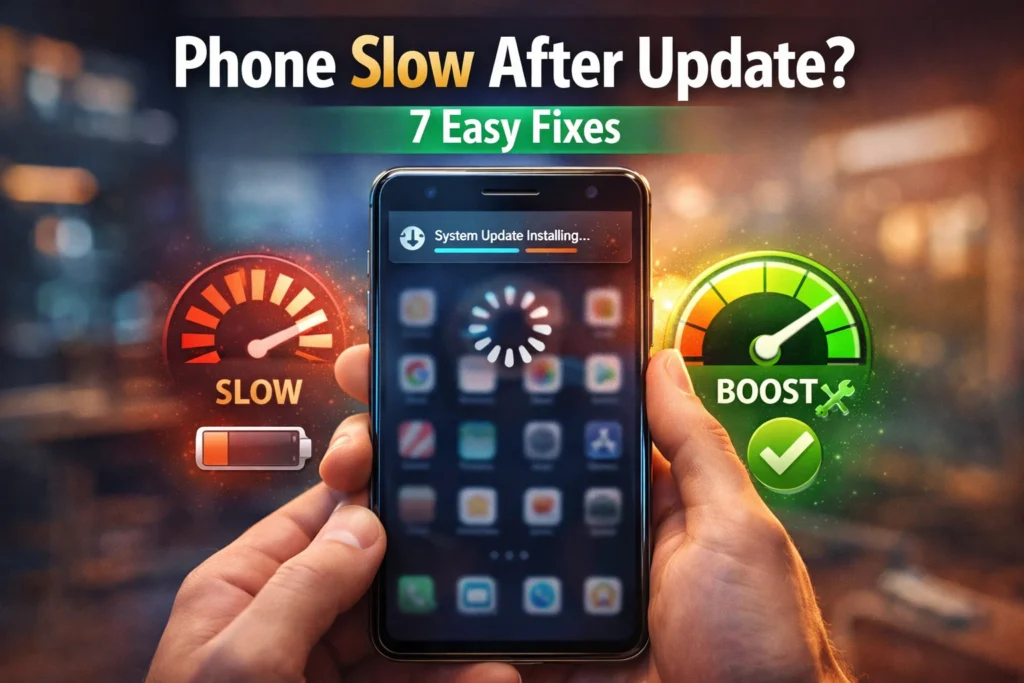
After a software update, it’s normal for your phone to feel slower than usual. You might notice apps taking longer to open, the phone getting warmer, or the battery draining faster.
This usually happens because the system is still running background tasks like reorganizing files, optimizing apps, and rebuilding data for the new software.
Depending on how much data is on your device, this process can take anywhere from a few hours to a couple of days.
In many cases, performance improves once these tasks are complete — especially if the phone is left idle and charging overnight.
If the slowdown continues beyond that, there are a few common causes and simple fixes that can help.
Quick Answer: Why Your Phone Is Slow After an Update
The most common causes are background indexing, outdated apps, low free storage, corrupted temporary data, or battery and heat-related throttling.
Best way to fix it
1. Restart your phone
2. Update all your apps
3. Delete files you do not need
4. Turn off background activity
5. Leave your phone charging overnight
1. Why Does Your Phone Slow Down After an Update?
After a major update, your phone is usually still doing cleanup work behind the scenes.
Until that finishes, performance can feel worse than normal.
Background Indexing
After every major update, your phone reorganizes every file, photo, message, and contact so that the new OS can find and access them efficiently.
On iPhone, this is called Spotlight indexing.
On Android, Media Storage and Google Photos Sync do the same job.
Depending on how much data is stored on the device, this can finish quickly or continue into the next day or two.
Leaving the phone idle, plugged in, and connected to Wi-Fi overnight allows most indexing and optimization tasks to complete faster.
iOS and Android both complete most of this indexing while the phone is idle and connected to power.
During this phase, the system may also reprocess photo libraries for search features, rebuild internal databases, and optimize apps for the new software version — all of which can temporarily affect performance.
App Compatibility
Some apps do not behave well immediately after a major OS update.
Until they are updated by the developer, they can crash more, drain more battery, or feel sluggish.
Updating your apps soon after an update often improves performance, as developers release optimizations for the new system version.
Cache Conflict
Cached data from the old version can sometimes clash with the new one. When apps rebuild that data, brief lag or extra battery drain is normal.
This is why clearing cache after a phone update can sometimes improve performance — especially if an app is holding outdated temporary data.
Battery Throttling
If the phone becomes warm or the battery is heavily worn, the system may temporarily reduce performance to protect internal components and maintain stability.
This is especially noticeable if your battery health is below 80%.
In some cases, adjusting battery or performance settings can improve responsiveness.
New Features Use More Resources
New versions of iOS and Android sometimes add background features or heavier visual effects.
Older devices may feel that change more than newer ones.
Modern smartphone updates do more than install new features.
They often trigger background processes such as app recompilation, search database rebuilding, and AI-driven media analysis.
Until these tasks complete, temporary slowdowns, heat, or increased battery usage can occur.
2. 7 Quick Fixes to Speed Up Your Phone After an Update
Follow these in order.
1. Force Restart Your Phone
A force restart can clear stuck processes that a normal restart may not.
It is a good first step if the phone became slow immediately after the update.
iPhone (X and later): Press Volume Up → Press Volume Down → Hold Side button until Apple logo appears
iPhone 7 / 7 Plus: Hold Volume Down + Side button together until Apple logo appears
Android: Hold Power + Volume Down together for 10 seconds until the phone restarts
2. Update All Your Apps
Go to the App Store or Play Store and update every app.
Apps that have not been updated for the new OS run less efficiently and use more CPU and memory than they should.
This is one of the fastest ways to reduce post-update lag after indexing.
iPhone: App Store → tap your profile icon → scroll down → tap Update All
Android: Play Store → tap your profile icon → Manage apps & device → Update All
3. Check and Free Up Storage Space
Your phone needs at least 10 to 15% of storage free to run normally.
Apple officially states you need at least 1GB free for normal performance.
When storage is nearly full after an update, the phone struggles to move and rewrite files — which makes everything slower.
Delete or offload what you do not need.
iPhone: Settings → General → iPhone Storage → review and offload unused apps
Android: Settings → Storage → check what is taking the most space and delete it
4. Close Background Apps
Closing apps from the app switcher usually does not make a big difference on its own.
A better step is limiting background activity for apps that do not need to refresh constantly.
iPhone: Settings → General → Background App Refresh → turn Off
Android: Settings → Apps → [App Name] → Battery → Restrict background activity
5. Wait 24 to 72 Hours
In many cases, the phone simply needs time to complete background tasks after the update.
Leave it charging overnight so background tasks can complete without interruption.
iOS and Android both finish most of their background indexing and optimization while the phone is idle and plugged in.
In real-world use, phones often become noticeably faster after being left idle and charging overnight, as most background optimization tasks complete during this time.
✅ Plug in to charge on Wi-Fi before going to sleep
✅ Leave it overnight — let the phone do its work undisturbed
✅ Check again in the morning — most phones are noticeably faster
6. Test in Safe Mode — Find the Rogue App
This step helps identify whether the slowdown is caused by the system or by a third-party app.
If your phone becomes noticeably faster in Safe Mode, it strongly indicates that a third-party app — not the system update — is causing the slowdown.
Safe Mode loads only the core operating system — no downloaded apps run in the background.
Android Safe Mode: Hold Power button → long-press “Restart” → tap Safe Mode → phone reboots with “Safe Mode” in the corner
iPhone equivalent: there is no Safe Mode on iOS. Instead, delete recently installed apps one by one and restart after each to find the culprit
✅ If the phone is faster in Safe Mode: the problem is a third-party app.
Uninstall recently added apps until you find it.
7. Check Battery Health Throttling
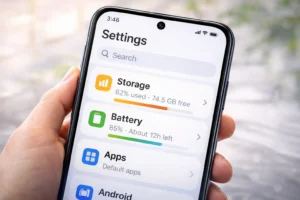
Battery health is also important to check, especially on older phones.
Apple states that iPhones with battery health below 80% may enable performance management to prevent unexpected shutdowns, which can reduce speed.
In some cases, adjusting performance management settings or replacing an aged battery can improve responsiveness.
iPhone: Settings → Battery → Battery Health & Charging → check Maximum Capacity.
If below 80%, performance management may be active. You can disable it on this screen.
Android: Settings → Battery → Battery Usage → look for any app using over 30% of battery in the background. That app may be throttling the whole phone.
3. Deep Dive: Fixes for iPhone Users (iOS)
These fixes go deeper than the quick steps above.
Try them if your iPhone is still running slow after the basic fixes.
Reduce Motion
Reducing motion does not increase processing power, but it often makes older iPhones feel faster because animations require fewer resources.
Go to Settings → Accessibility → Motion → Reduce Motion and turn it on.
This removes all the parallax and animation transitions from the interface.
Your iPhone will feel noticeably snappier immediately, especially on older models.
Reduce Transparency
Go to Settings → Accessibility → Display & Text Size → Reduce Transparency and turn it on.
This turns off the frosted glass blur effects that appear across the entire iOS interface.
On some devices, reducing transparency can improve responsiveness by lowering the graphical load on the system.
Try toggling it off and back on — some users reported this alone fixed their lag.
Disable Siri Suggestions
Go to Settings → Siri & Search and turn off “Show Suggestions”.
Siri and search features may perform extra indexing after a major update.
This consumes significant background CPU during the first 24 to 48 hours. Disabling it temporarily reduces the indexing load.
You can turn it back on after a few days once things have settled.
Clear Safari Cache
Go to Settings → Apps → Safari → Clear History and Website Data.
If you browse heavily on Safari, cached pages, cookies, and history build up significantly.
If Safari feels slow after the update, clearing its cached data can help it run more smoothly.
Offload Unused Apps
Go to Settings → General → iPhone Storage and tap any app you rarely use → Offload App.
This removes the app but keeps your data.
The app reinstalls automatically when you tap it again.
Offloading several large apps frees storage and reduces the number of apps being re-optimized by the system after the update.
Turn Off Location Services for Non-Essential Apps
Go to Settings → Privacy & Security → Location Services. Any app set to “Always” runs in the background constantly, using GPS and CPU.
Change most apps to “While Using App” or “Never”.
Maps and phone apps can stay on Always — everything else should be restricted after an update to reduce background load.
Disable Apple Intelligence Temporarily
On iOS 18 and later, go to Settings → Apple Intelligence & Siri and turn off Apple Intelligence.
On supported models, Apple Intelligence features can increase background processing, so temporarily disabling them may improve responsiveness after an update.
You can re-enable it once the phone has finished its background processing.
Reset All Settings — Last Resort Before Factory Reset
Go to Settings → General → Transfer or Reset iPhone → Reset → Reset All Settings.
This resets every system preference — display brightness, Wifi passwords, notification settings, keyboard settings — without deleting any of your photos, apps, or personal data.
It often fixes deep performance issues caused by settings conflicts after an update.
It is the step to try before committing to a full factory reset.
4. Deep Dive: Fixes for Android Users
Android phones have more tools available for troubleshooting. These go beyond the basic steps.
Reduce Animations — Developer Options
Reducing animation scale can make the interface feel significantly faster, particularly on older or mid-range devices.
Go to Settings → About Phone → tap Build Number 7 times → enter your PIN → go back to Settings → Developer Options → find Window Animation Scale, Transition Animation Scale, and Animator Duration Scale → set all three to 0.5x or Off.
Reducing animation scale does not make the device faster internally, but it often makes navigation feel quicker by shortening visual transitions.
MakeUseOf and HowToGeek both confirm this works on any Android phone regardless of manufacturer.
Clear Individual App Cache
Go to Settings → Apps → tap any app → Storage → Clear Cache.
Start with the biggest offenders — Google Photos, Facebook, Instagram, Chrome, and your gallery app.
Clearing cache does not delete your personal data or account.
It only removes temporary files.
Start with the apps you use most or the ones behaving poorly after the update, as they are the most likely to benefit from cache clearing.
Clear System UI Cache
Go to Settings → Apps → tap the three dots or filter → Show System Apps → find “System UI” → Storage → Clear Cache.
System UI controls your home screen, status bar, and notification panel.
Clearing it fixes home screen lag and notification bar stuttering that often persists after Android updates.
This is a fix most guides do not cover.
Check Battery Optimization Settings
Go to Settings → Battery → Battery Optimization.
After a major update, Android sometimes re-applies restrictive battery settings to apps that were previously unrestricted.
If key apps are set to “Optimized” or “Restricted”, they may be throttled. Set your most-used apps to “Unrestricted” and check if performance improves.
Disable Bloatware and Pre-installed Apps
Go to Settings → Apps and look through the full list of installed apps.
Major Android updates sometimes re-enable apps you had already disabled.
Check after every update and disable anything you do not use.
You cannot always uninstall pre-installed apps, but you can disable them — which stops them running in the background and consuming RAM.
Clear Browser Cache
Open Chrome → tap the three dots → Settings → Privacy and Security → Clear Browsing Data → select All Time → tick Cached Images and Files → tap Clear Data.
If Chrome feels slow or unresponsive after the update, clearing cached data can help stabilize performance.
Do the same in any other browser you use.
Switch to Lite App Versions
If your phone is a budget or mid-range device and it is still struggling after an update, consider switching to lighter app versions.
Facebook Lite, Instagram Lite, and Google Go are all available on the Play Store and use a fraction of the CPU and RAM of the full versions.
This can make a real difference on phones with 3GB or 4GB of RAM.
Factory Reset — Last Resort Only
Go to Settings → General Management → Reset → Factory Data Reset. Back up everything first — to Google Drive, your computer, or both.
After the reset, reinstall your apps one by one rather than restoring everything at once.
This way, if a single app is causing the performance problem, you will identify it before it is reinstalled.
5. What NOT To Do After a Slow Update
This section is just as important as the fixes.
These are the things people commonly do that make the problem worse — or create new problems.
- Do not install third-party speed booster apps. They are ineffective. They typically just clear cache — something you can do yourself in seconds. Many also collect your data or show ads. Both iOS and Android manage their own memory automatically. No app can improve on this.
- Do not restart your phone repeatedly in the first 24 hours. Restarting repeatedly can delay background optimization tasks from finishing, since the system performs many of these processes while the device is idle.
- Do not try to downgrade your OS. This is risky, often impossible on iPhone without losing all your data, and almost never fixes the issue. Apple stops signing older iOS versions shortly after release, making downgrading impossible in most cases.
- Avoid making major changes immediately, as many post-update slowdowns resolve on their own within a couple of days.
6. Brand-Specific Fixes
Different Android manufacturers add their own software layers on top of Android.
After an update, each brand has slightly different places to look.
Samsung (One UI)
Xiaomi / Redmi (MIUI / HyperOS)
OnePlus
Google Pixel
7. When to Worry — Is It Hardware or Software?
Most post-update slowdowns are software.
But sometimes the update reveals or worsens an existing hardware issue. Here is how to tell the difference.
Battery Health
On iPhone, go to Settings → Battery → Battery Health & Charging and check the Maximum Capacity percentage.
If it is below 80%, iOS may have automatically enabled performance management to prevent unexpected shutdowns.
This deliberately throttles the processor.
You can disable performance management on this screen to restore full speed — but be aware the phone may occasionally shut down unexpectedly until you replace the battery.
On Android, go to Settings → Battery → Battery Usage and check if any single app is consuming over 30% of battery in the background.
Overheating
If your phone is hot to the touch it is slowing itself down to protect the internal components.
This is called thermal throttling and it is a safety feature — not a flaw.
It is normal during the first 24 hours after an update when the processor is under heavy load from indexing.
If the phone is still getting notably hot after 3 days with no improvement, something else is wrong — check for a runaway app in your battery usage settings.
For more on heat-related issues, see our guide on why your phone switches off automatically.
Age of Device
If your phone is 4 or more years old, the new operating system may genuinely be too heavy for the processor.
At that point, software adjustments may help slightly, but they cannot fully compensate for older hardware limitations.
On older iPhones, disabling motion effects and transparency helps significantly.
On older Android phones, switching to lite app versions and reducing animation scales can restore a usable level of performance — but there is a limit to how much you can do without a hardware upgrade.
8. Quick Diagnosis Table
Not sure what is causing your specific slowness? Use this table to find the most likely cause and the right fix to try first.
| What You Are Experiencing | Most Likely Cause | Fix to Try First |
|---|---|---|
| Slow only in the first 24 hours | Background indexing in progress | Wait — leave plugged in overnight on WiFi |
| Phone is slow AND hot to touch | Thermal throttling | Cool it down, charge in a cool room, stop demanding apps |
| Slow AND low storage warning showing | Storage nearly full | Free up storage — offload apps, delete old files |
| Slow only in specific apps | Apps not updated for new OS | Update all apps in App Store / Play Store immediately |
| Battery draining fast AND slow | Battery health issue or runaway app | Check battery health — Settings → Battery → Battery Health |
| Slow everywhere, fast in Safe Mode | Third-party app causing the problem | Uninstall recently added apps one by one until fixed |
| Animations specifically feel sluggish | Animation settings or transparency | Reduce Motion (iPhone) or reduce animation scale (Android Developer Options) |
| Still slow after 2 weeks | Settings conflict or deeper issue | Reset All Settings (iPhone) or factory reset as last resort |
9. How to Prevent Slowdowns After Future Updates
You cannot always avoid post-update slowness — but you can reduce how bad it is and how long it lasts.
- Back up before every update. Protects your data and gives you a restore point if something goes wrong during installation.
- Wait one week before updating. Early versions of major updates often contain more reported issues, so waiting for the first minor update can reduce risk.
- Charge to at least 80% before updating. Low battery during an update can cause incomplete installation and leave the phone in an unstable state.
- Keep at least 15–20% storage free at all times. The system needs headroom to move and rewrite files during and after an update.
- Update on an evening or weekend. This way the phone can complete its background indexing overnight without being interrupted by heavy use.
- Restart your phone once a week. Restarting occasionally can help clear stuck processes, but it is not a guaranteed way to prevent performance issues.
10. GEO & Climate Effects on Post-Update Performance
Hot Climates — GCC, South Asia, Sub-Saharan Africa
High ambient temperatures can make post-update slowdowns feel more noticeable because the phone may reduce performance to prevent overheating while background tasks are still running.
Completing updates and initial setup in a cool indoor environment can help minimize this effect.
Apple states that iPhone is designed to work between 0°C and 35°C for optimal performance.
If you live in a hot climate, charge and update in an air-conditioned room and avoid using the phone heavily during the first few hours after the update.
Cold Climates — Northern Europe, Canada, Russia
Cold batteries perform worse and accept charge less efficiently.
Lithium-ion batteries lose capacity in cold conditions, which makes post-update battery drain feel even worse than it already is.
If you are in a cold climate, let the phone warm up to room temperature before starting an update.
Avoid charging outside or in an unheated space immediately after an update.
Humid Climates — Southeast Asia, Coastal Regions
Moisture in the USB-C or Lightning port can trigger the moisture detection system, which pauses charging.
If charging is interrupted during setup or early optimization, it may take longer for the phone to return to normal performance.
Always dry the port thoroughly before plugging in for an update.
If you have had water exposure recently, see our guide on why phones switch off automatically for steps to check your hardware.
11. Frequently Asked Questions
In most cases, slowdown lasts between 24 and 72 hours. On older phones or devices with a lot of stored data, it can take longer for background tasks to finish. Leave your phone plugged in overnight connected to WiFi — both iOS and Android complete most of their optimization while the phone is idle and on charge. If it is still noticeably slow after 5 days, work through the fixes in this guide.
A factory reset is a last resort — try every other fix first. On iPhone, try Reset All Settings before a full factory reset. It resets system preferences without touching your personal data and often fixes deep performance problems caused by settings conflicts after an update. Always back up everything before any type of reset.
Only if your storage is nearly full. Apple officially recommends at least 1GB of free space for normal performance. If you have plenty of storage free, deleting photos alone will not make a meaningful difference. Focus on clearing app caches and reducing animations first — those are faster and more impactful.
Yes, for the first 24 to 48 hours. Background indexing, app optimization, and Spotlight re-indexing all use significant CPU power, which drains the battery faster than normal. This is temporary and should settle once the background processing is complete. If heavy battery drain continues beyond 3 days, check your battery health settings and look for apps running at high CPU in the background.
The processor is working hard on background indexing and optimization right after the update. This is normal for the first 24 hours and not a sign of a problem. If the phone is still noticeably hot after 3 days, check your battery health and look in your battery usage settings for any single app consuming unusually high CPU in the background. That app is likely the cause.
12. Conclusion
In most situations, post-update slowdowns are linked to background optimization tasks, outdated apps, or limited storage rather than hardware failure.
In most cases, working through these steps resolves the issue without needing a full reset.
If you are still having problems after working through this guide, the next step is to check which apps are consuming the most battery and CPU in the background.
One rogue app causes more slowness than the update itself in many cases.
- Step 1: Force restart — reloads system services and can resolve stuck background processes
- Step 2: Update all apps — gets them compatible with the new OS
- Step 3: Free up storage — keep at least 15% free
- Step 4: Reduce animations — Settings → Accessibility → Reduce Motion (iPhone) or Developer Options (Android)
- Step 5: Wait 24–72 hours, plugged in on WiFi overnight
- If still slow: test in Safe Mode, check battery health, try Reset All Settings
For other common phone issues, check our guides: phone not connecting to WiFi, Bluetooth not working, and speaker not loud.